- From your Magicflix dashboardFrom your MagicFlix dashboard, go to your profile section.
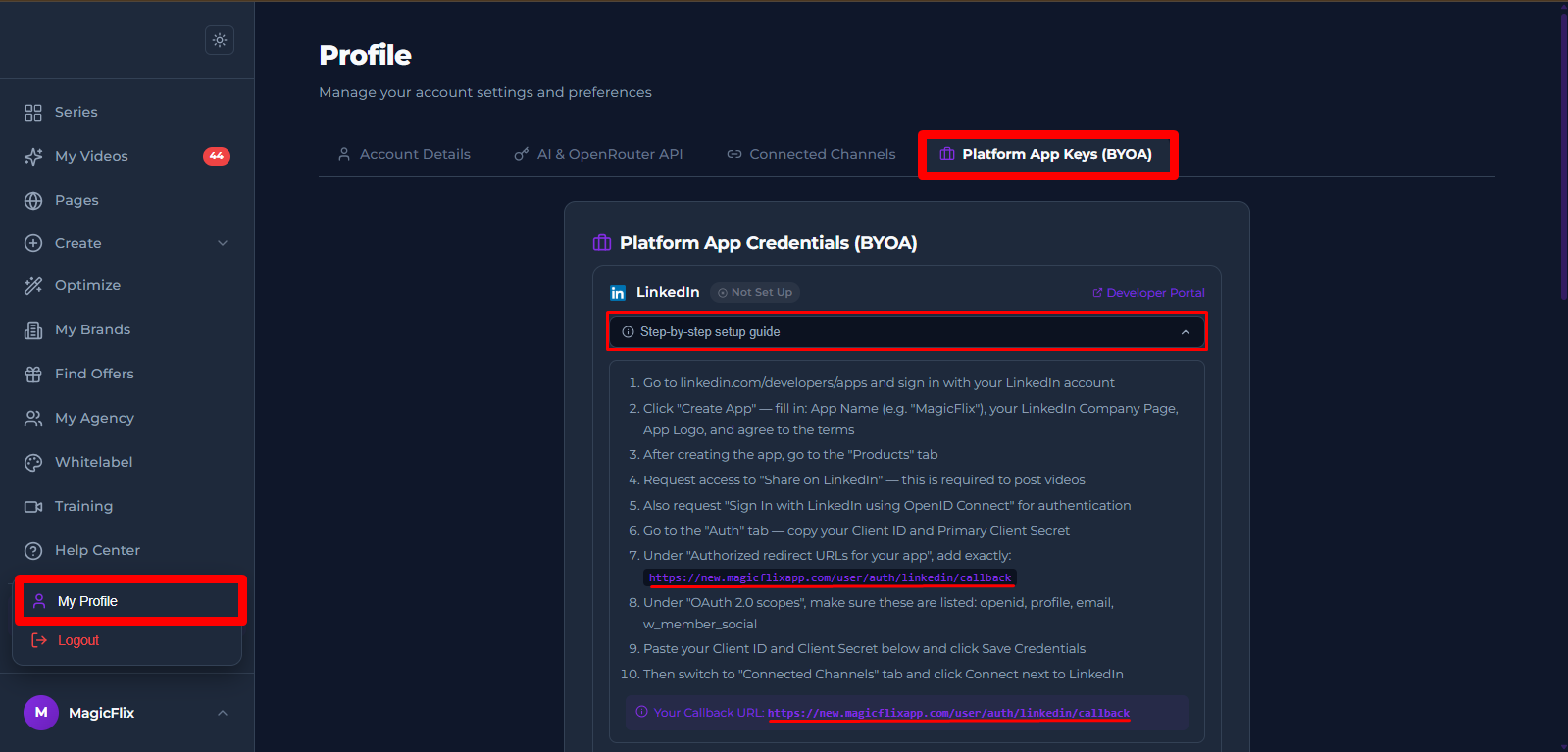
Click the "Platform App Keys" tab.
Find LinkedIn and click "Developer Portal".
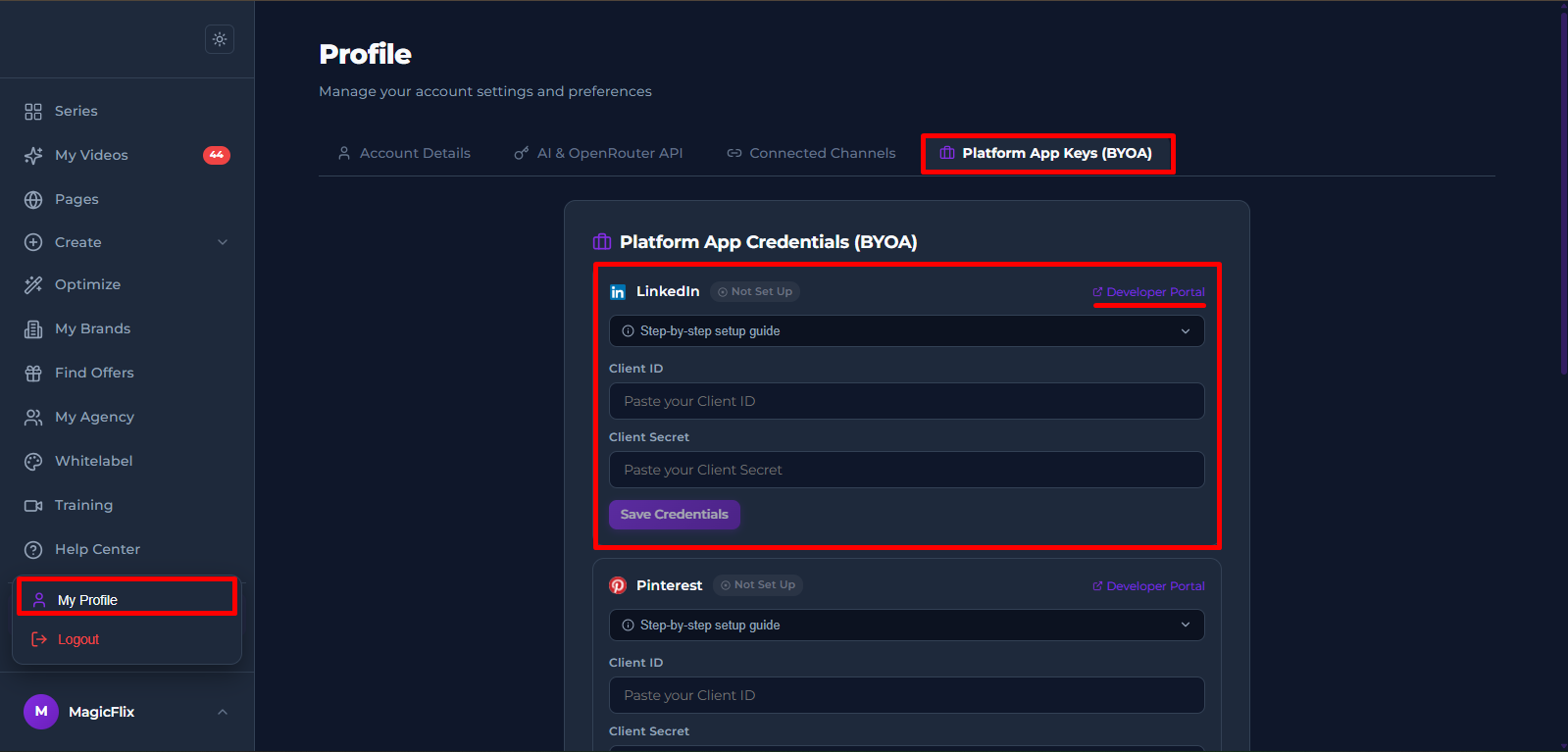
- You will be taken to the LinkedIn Developer platform (https://www.linkedin.com/developers/apps)
- Login to your developer account and click on “Create App”
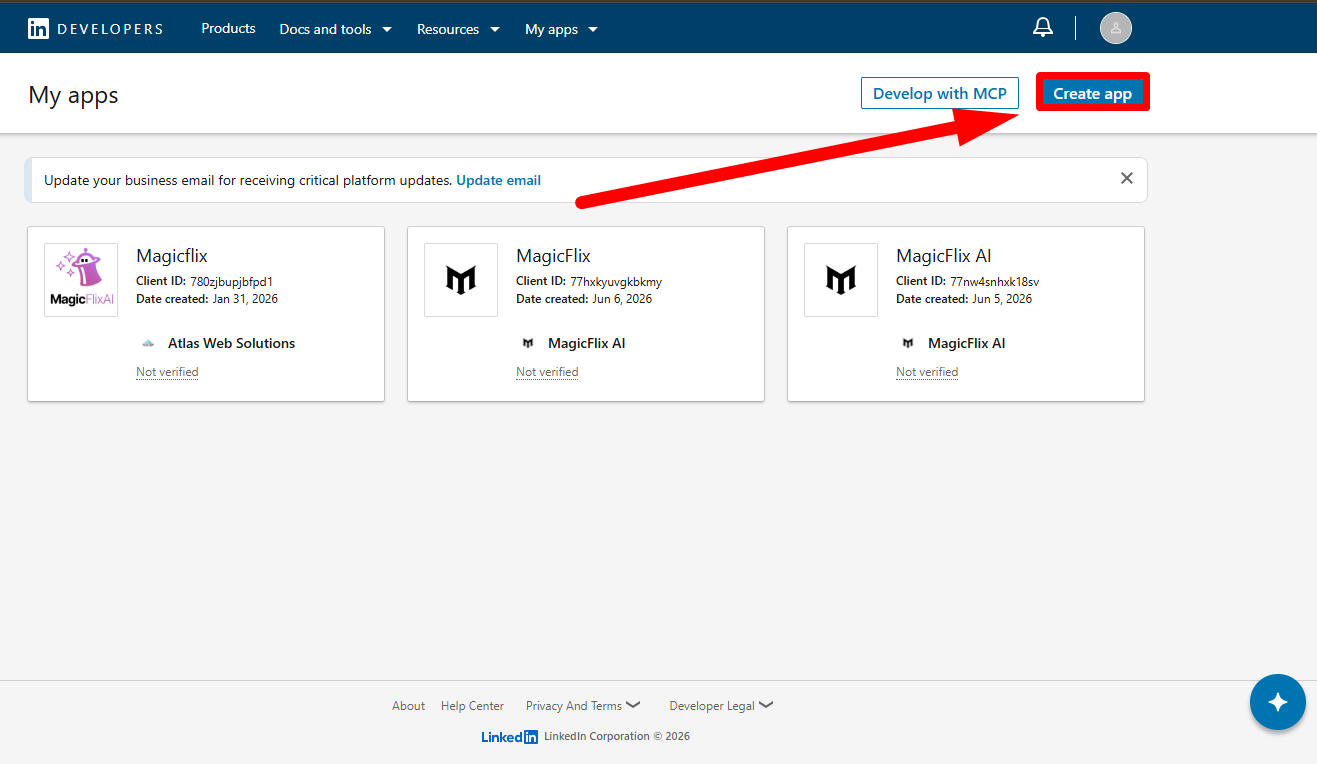
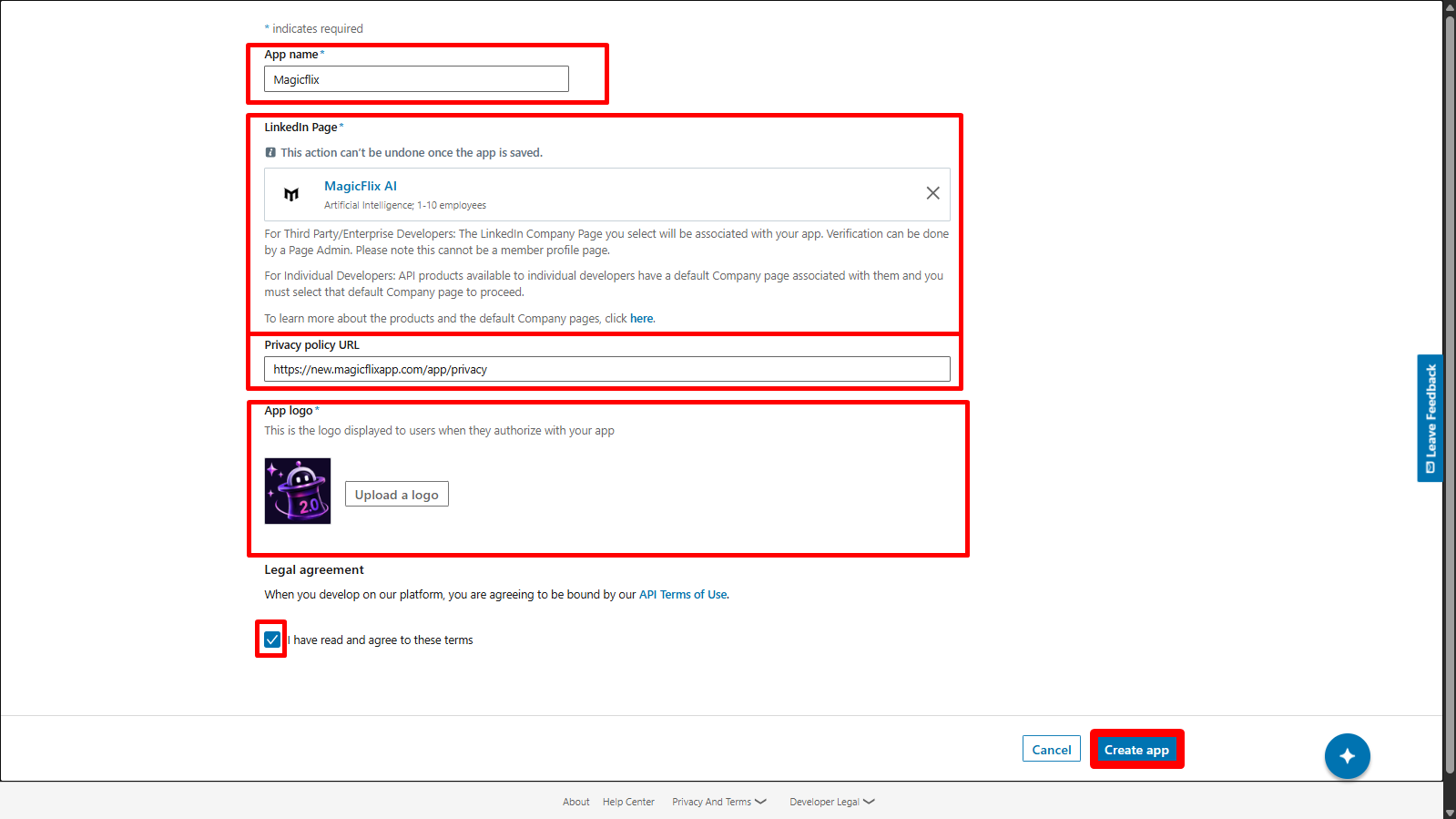
- Start by adding the app name
- Add your company name, you can add the name and LinkedIn will find your account, or you can add the link to your account directly
- Add the privacy policy URL
- Add your logo
- Check the “I have read and agree to these terms "I have read and agree to these terms” option.
- Finally click on “Create App”
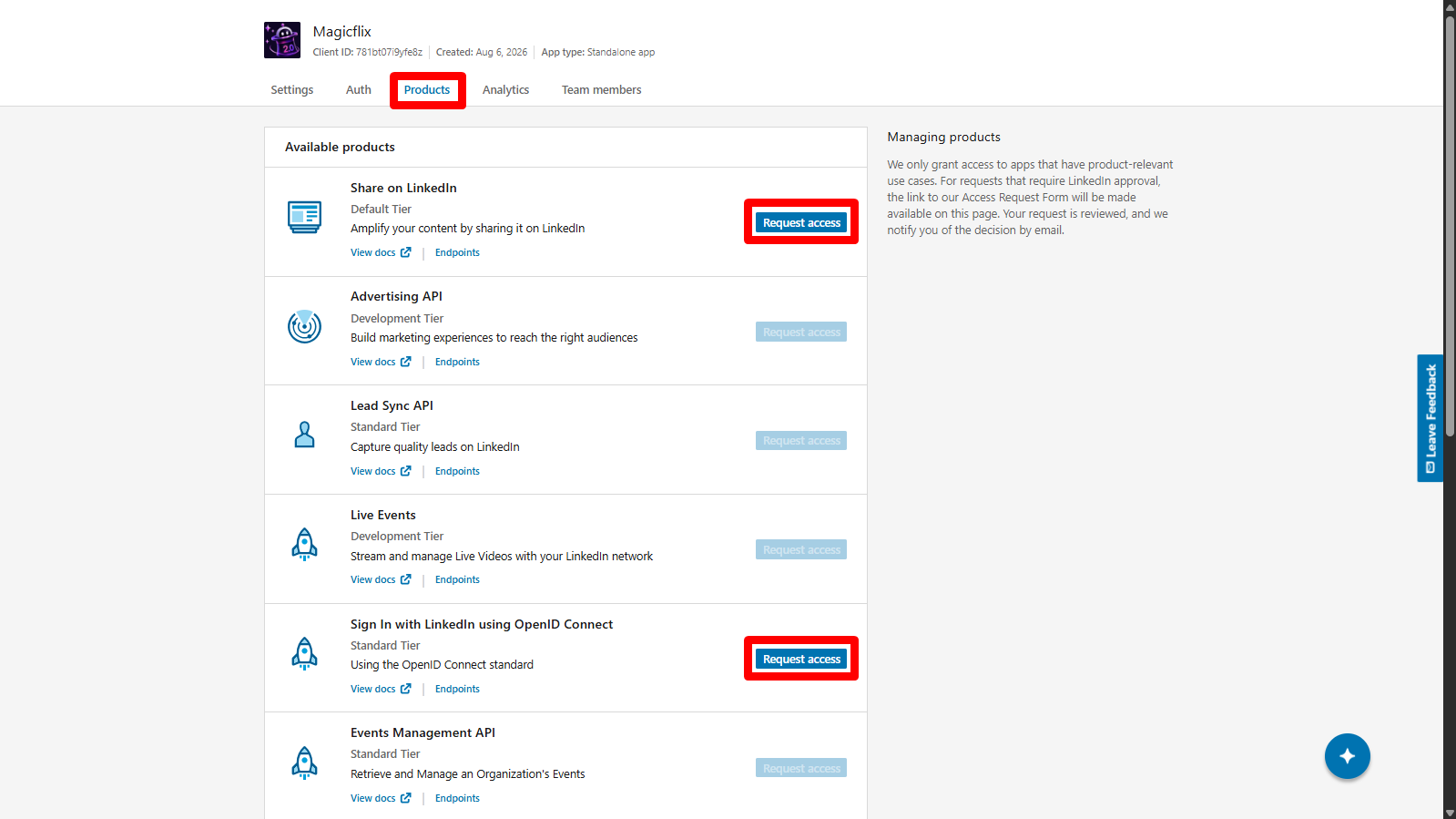
- You will be taken to the Products tab
- Request access to “Share on LinkedIn” and “Sign In with LinkedIn using OpenID Connect” This will allow Magicflix to post on your behalf.
- Login to your developer account and click on “Create App”
- Go back to to MagicFlix
- Head to your profile, under “Platform App Credentials”
- Find Linkedin, and click on the Step-by-step Guide
- You will find your LinkedIn Callback URL copy it and go back to linkedIn
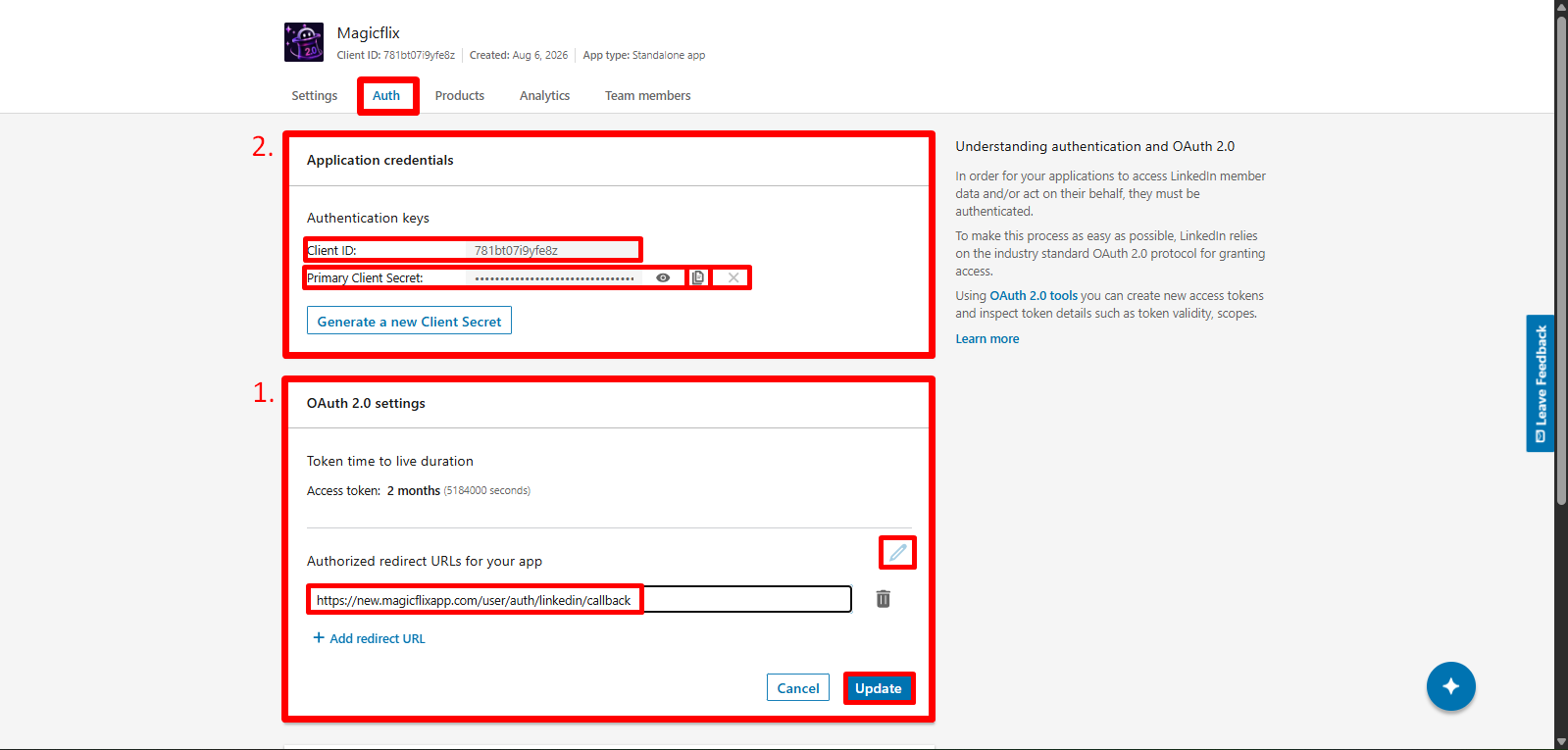
- In your LinkedIn developer account go to the “Auth” tab.
- Find the “OAuth 2.0 settings” section.
- Click the pen icon to edit it, then paste your Callback url.
- Click on Update.
- Scroll back to the top.
- Find the “Client ID” and “Primary Client Secret” copy them and head back to MagicFlix
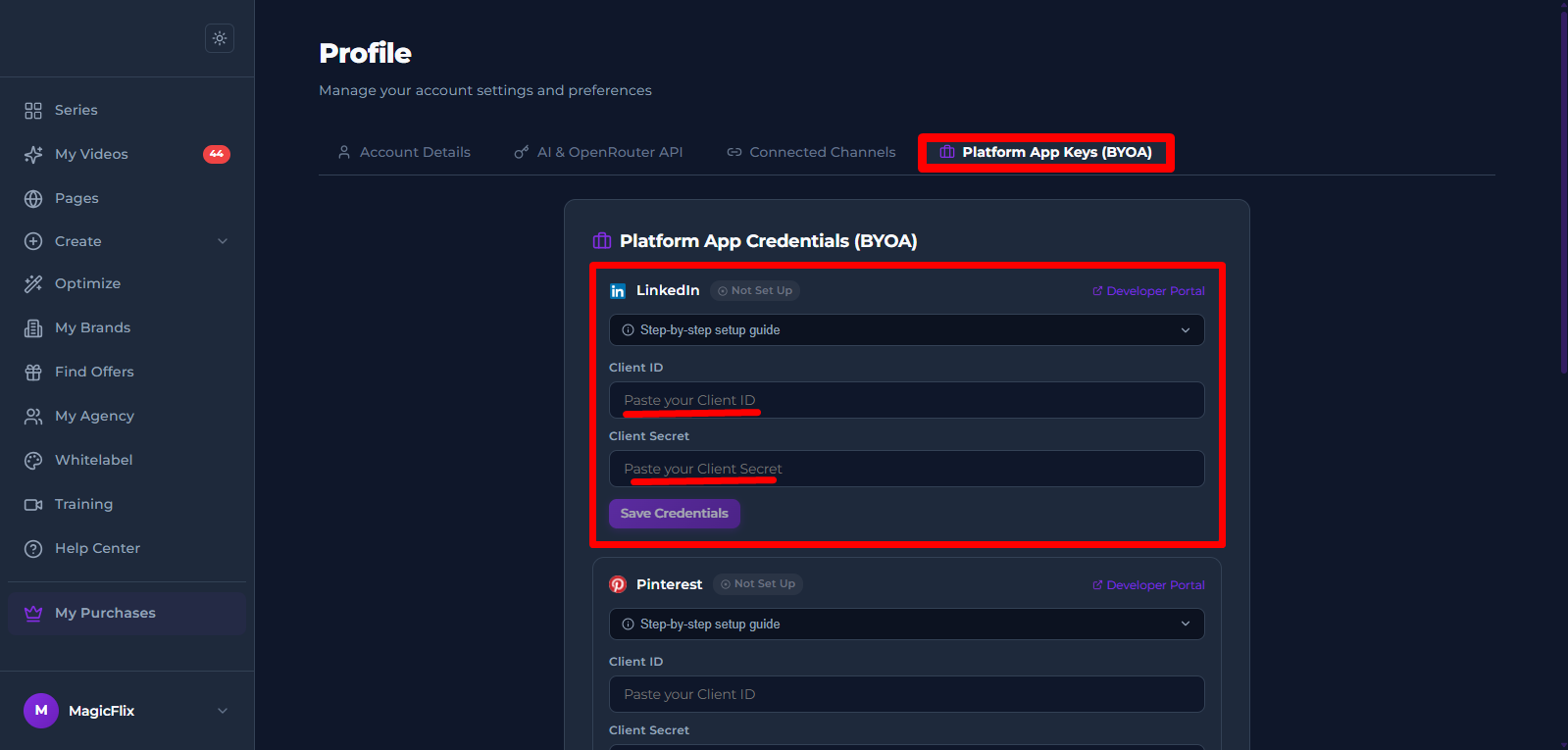
- In your MagicFlix profile, under Platform App Keys, find LinkedIN
- Then paste the “Client ID” and “Primary Client Secret” keys in their respective fields.
- Finally Click on “Save Credentials”
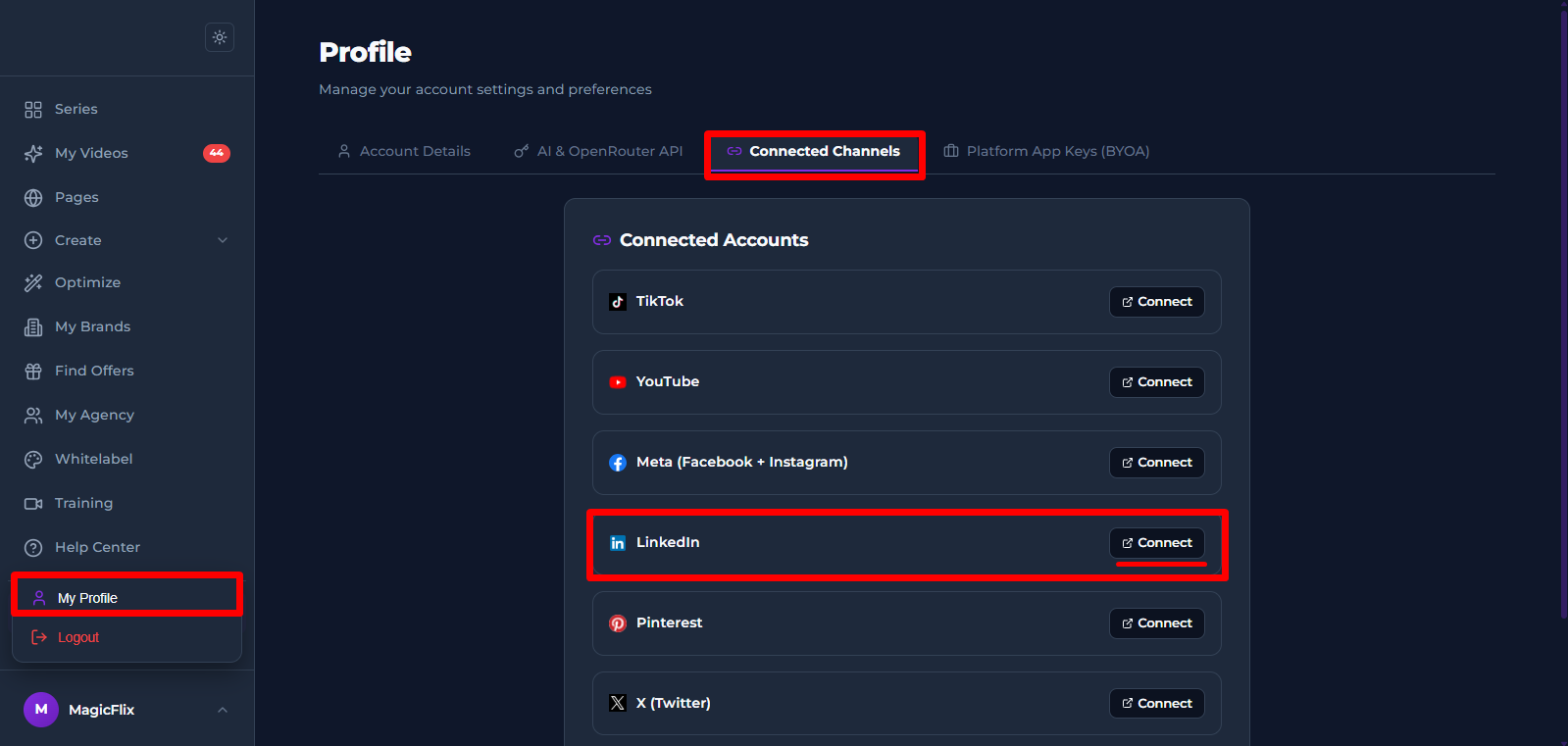
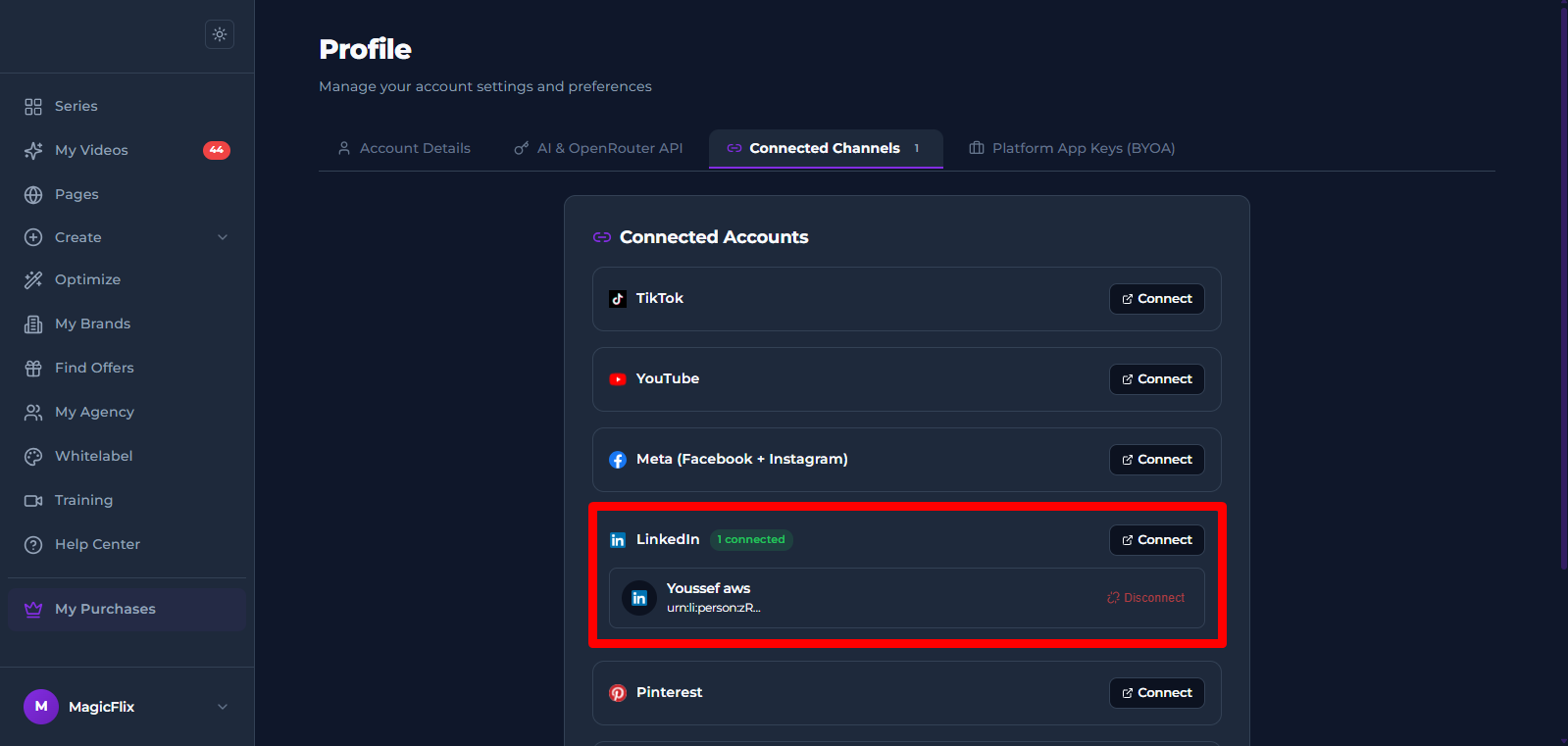
- Head to the “Connected Channels” tab, Find LinkedIn, and click on Connect
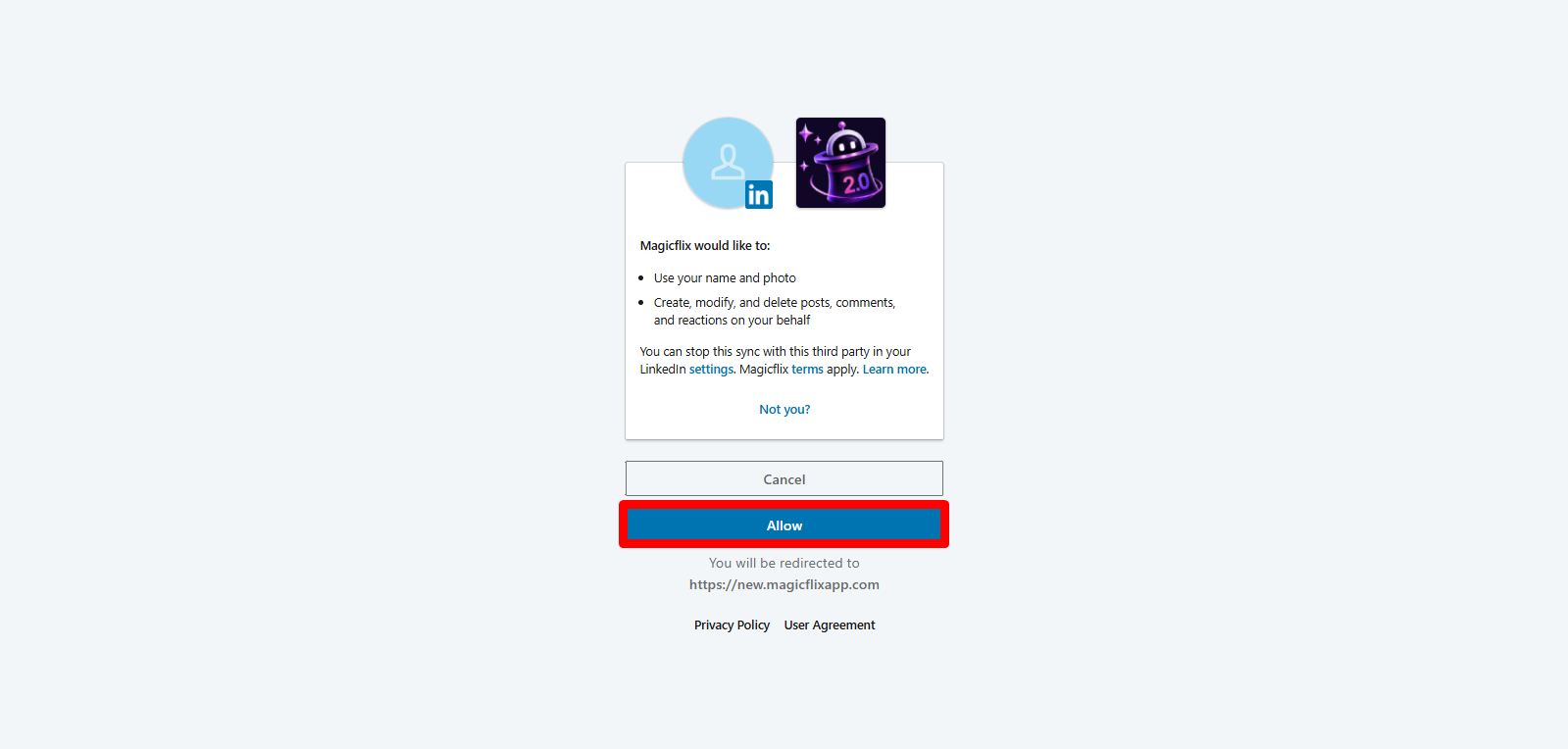
- Click allow to give Magicflix the required permissions
- Your account should now be connected
Still No Luck ? We can help you
Create a ticket, we’ll get back to you as soon as possible.
Submit a Ticket