- From your Magicflix dashboardFrom your MagicFlix dashboard, go to your profile section.
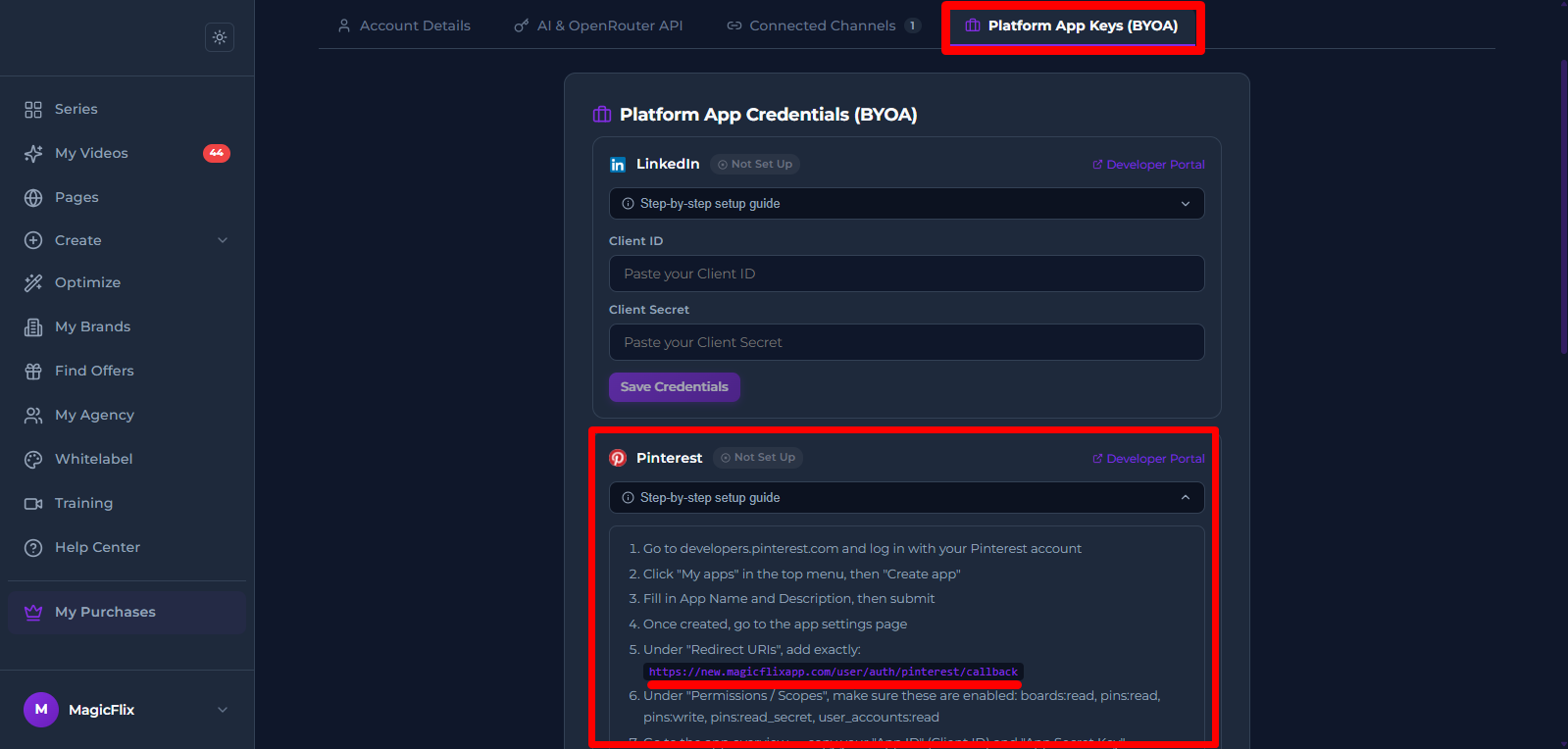
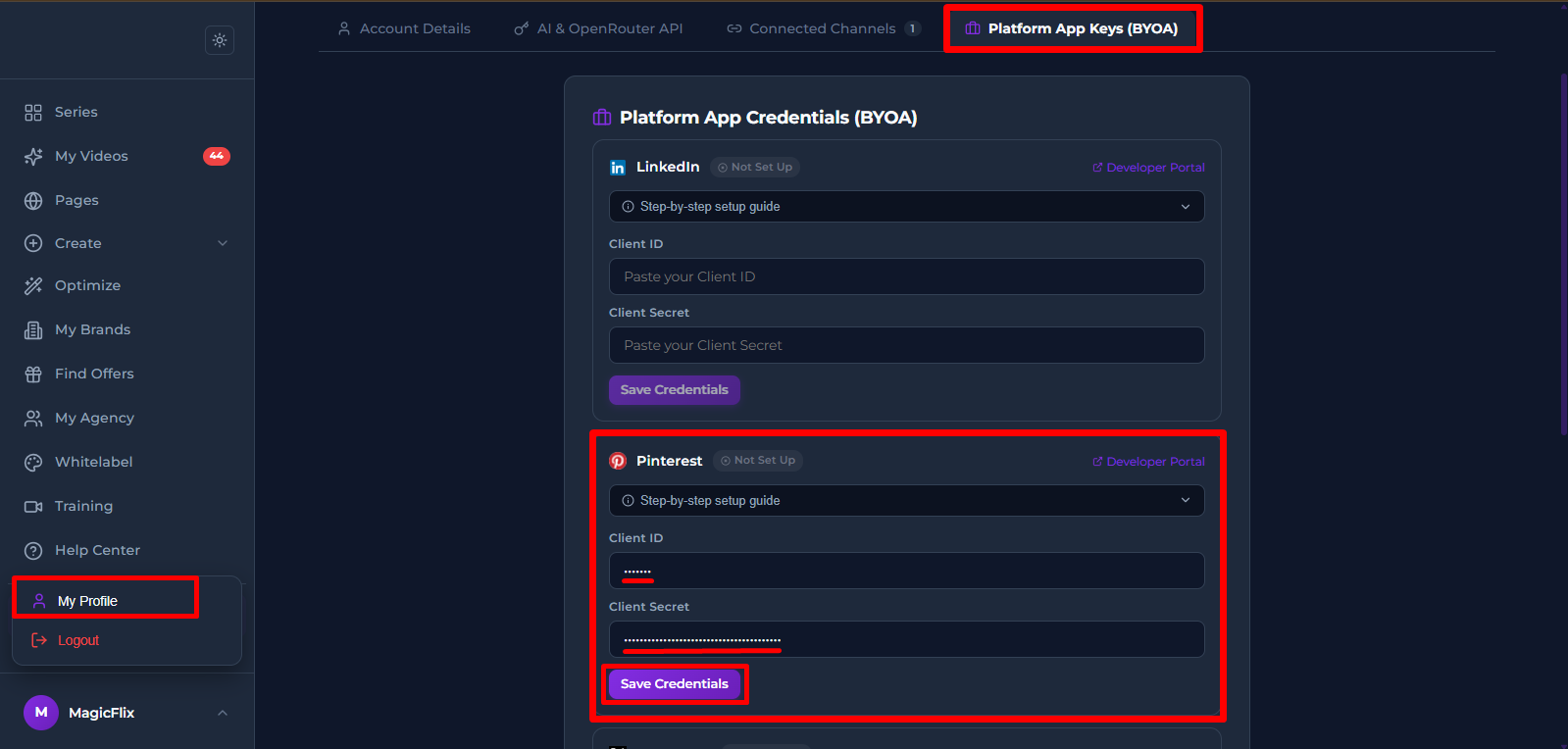
Click the "Platform App Keys" tab.
Find Pinterest and click "Developer Portal".
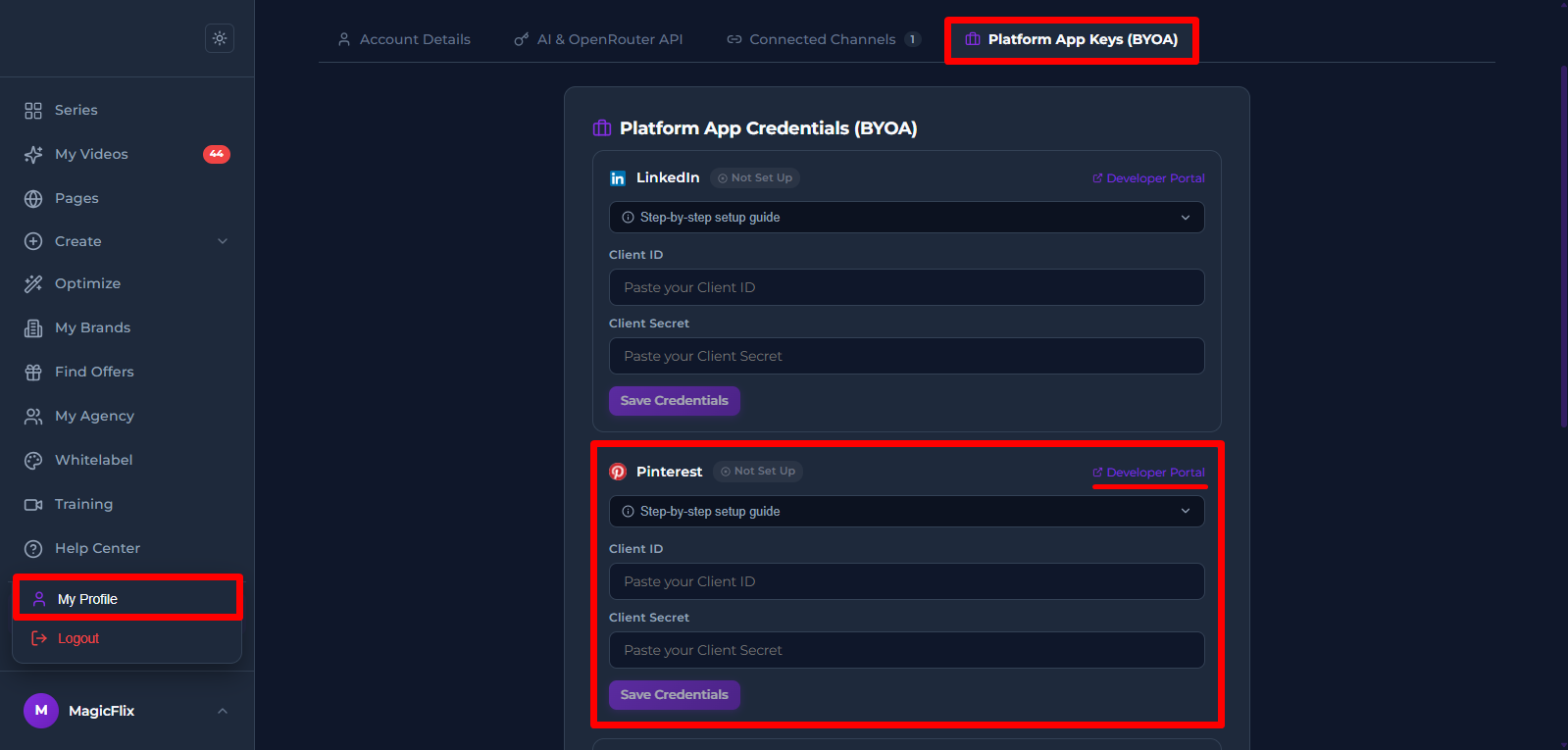
- You will be taken to the Pinterest Developer platform (https://developers.pinterest.com/apps/)
- Login to your developer account and click on “Connect App”
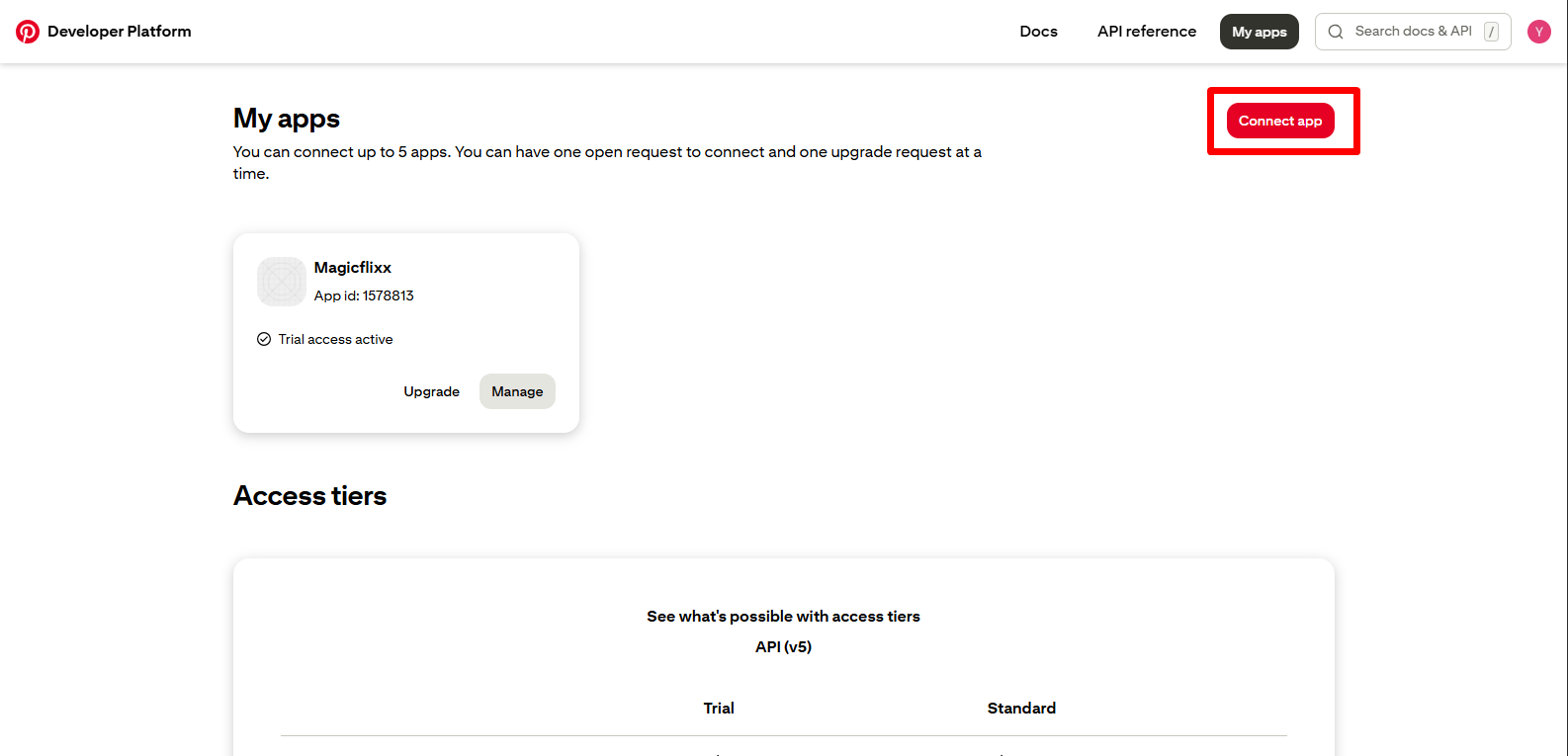
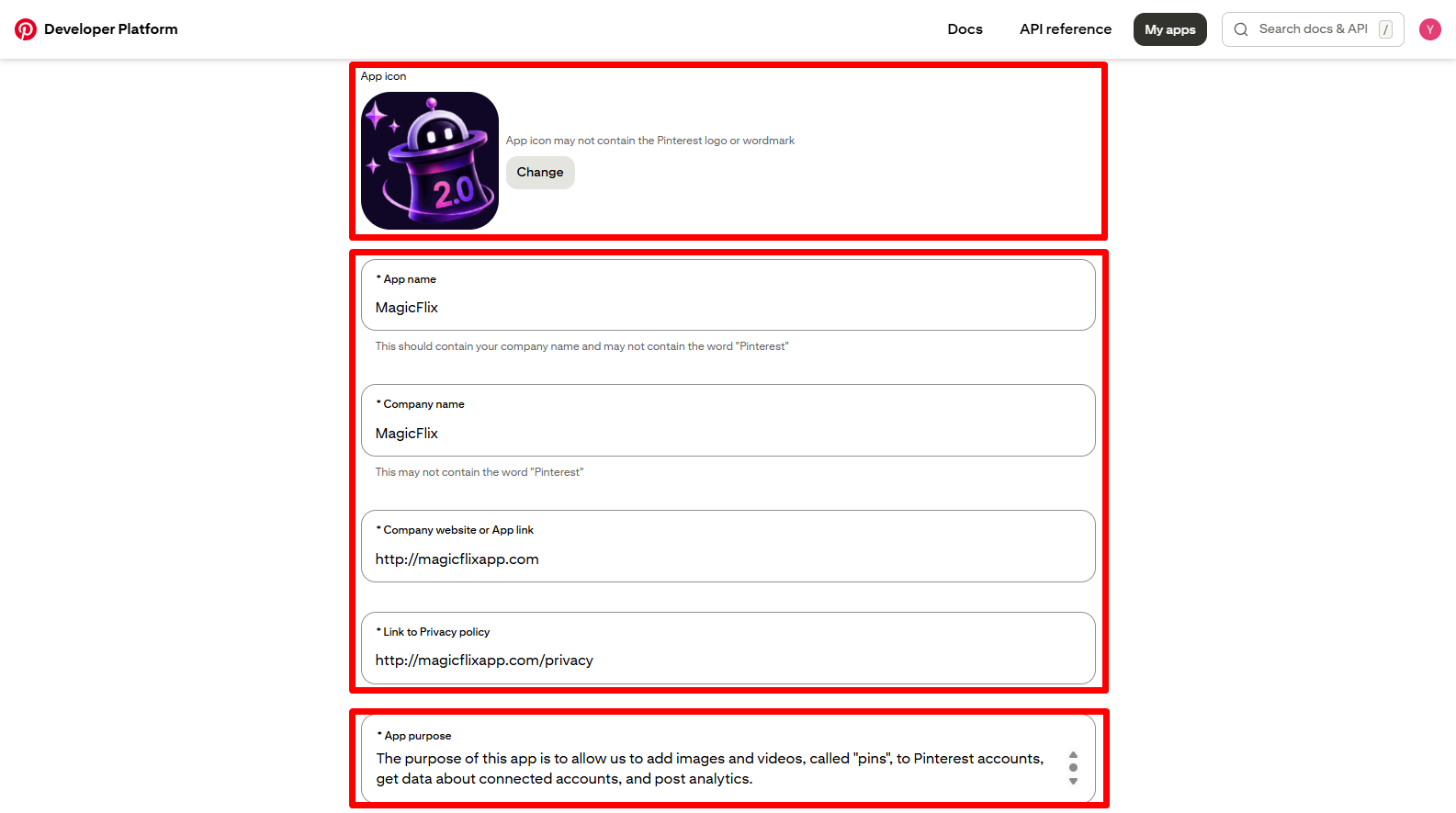
- Start by adding your Logo
- Add your App name, Company name, and website, then add a a link to the privacy polic page
- Add the app purpose, you can add the same one i added: “
The purpose of this app is to allow us to add images and videos, called "pins", to Pinterest accounts, get data about connected accounts, and post analytics.”
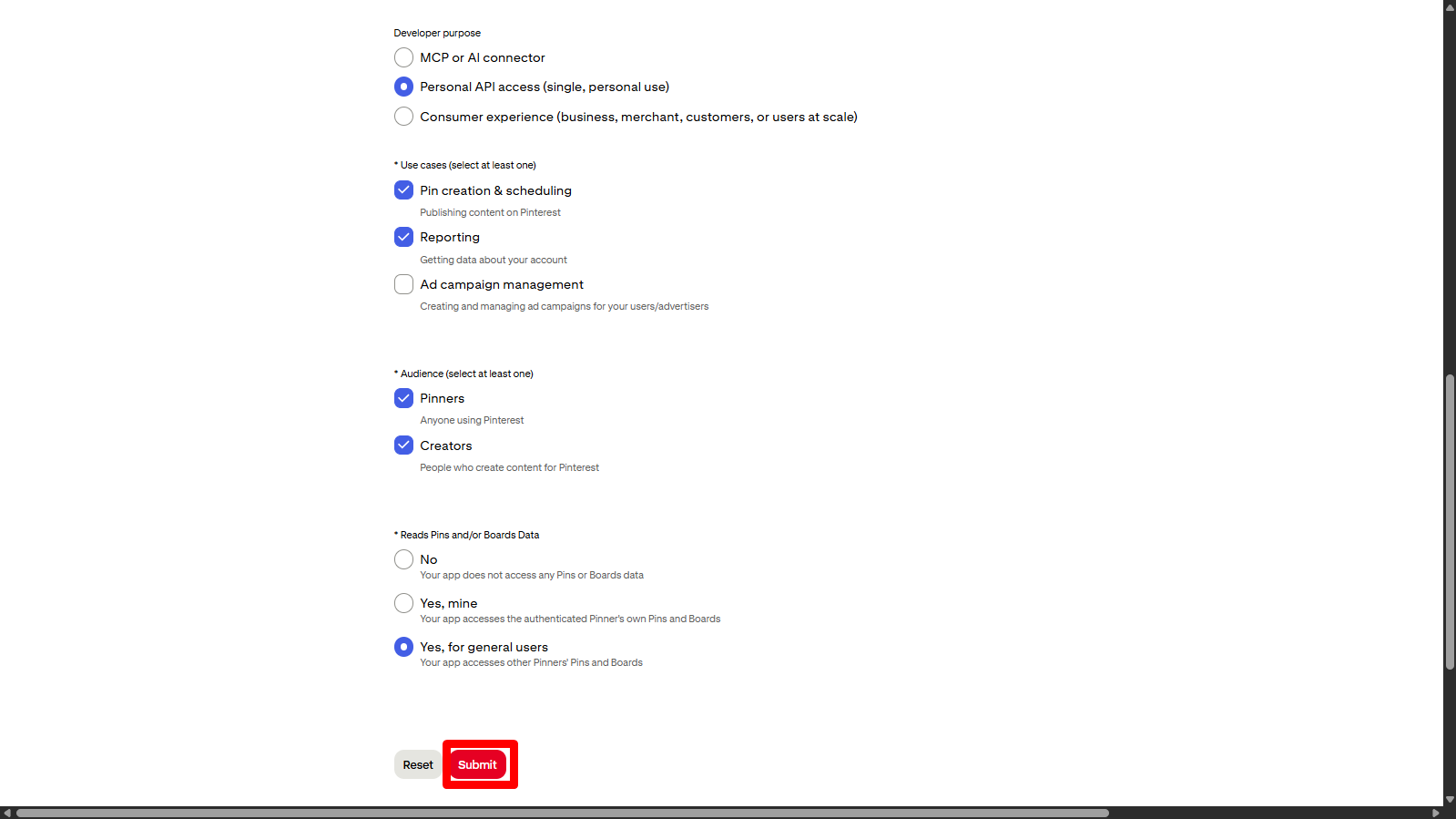
- Pick the following options for each one:
- Developer purpose: Personal API access (single, personal use)
- Use cases: Pin creation & scheduling and Reporting
- Audience: Pinners and Creators
- Reads Pins and/or Boards Data: Yes, for general users
- Once done, click on “Submit”
- Login to your developer account and click on “Connect App”
- Go back to to MagicFlix
- Head to your profile, under “Platform App Credentials”
- Find Pinterest, and click on the Step-by-step Guide
- You will find your Pinterest Callback URL copy it and go back to Pinterest
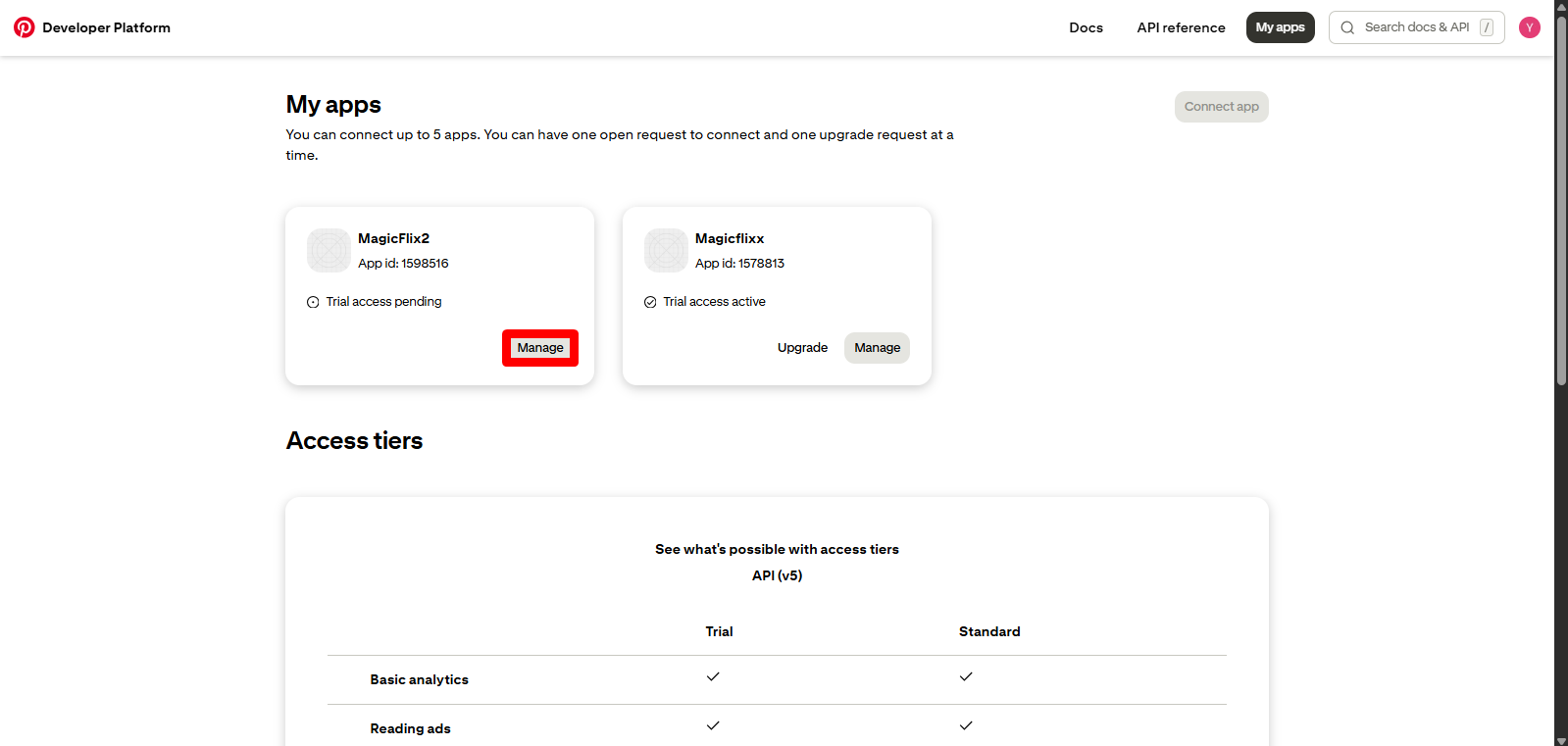
- In your Pinterest developer account click on Manage your app.
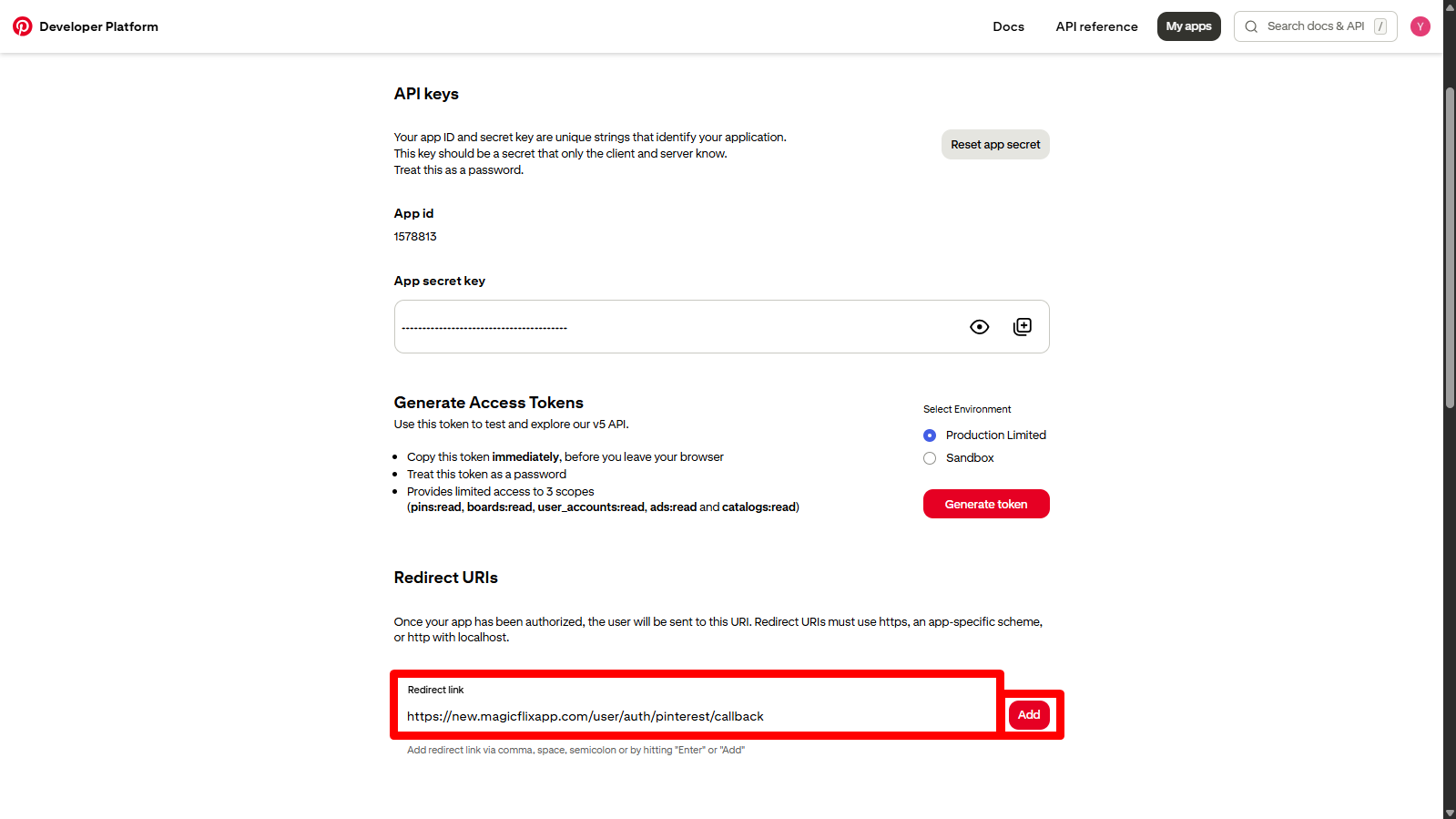
- Scroll down to the callback URL field
- Paste the callback URL you got from MagicFlix
- Click on Add.
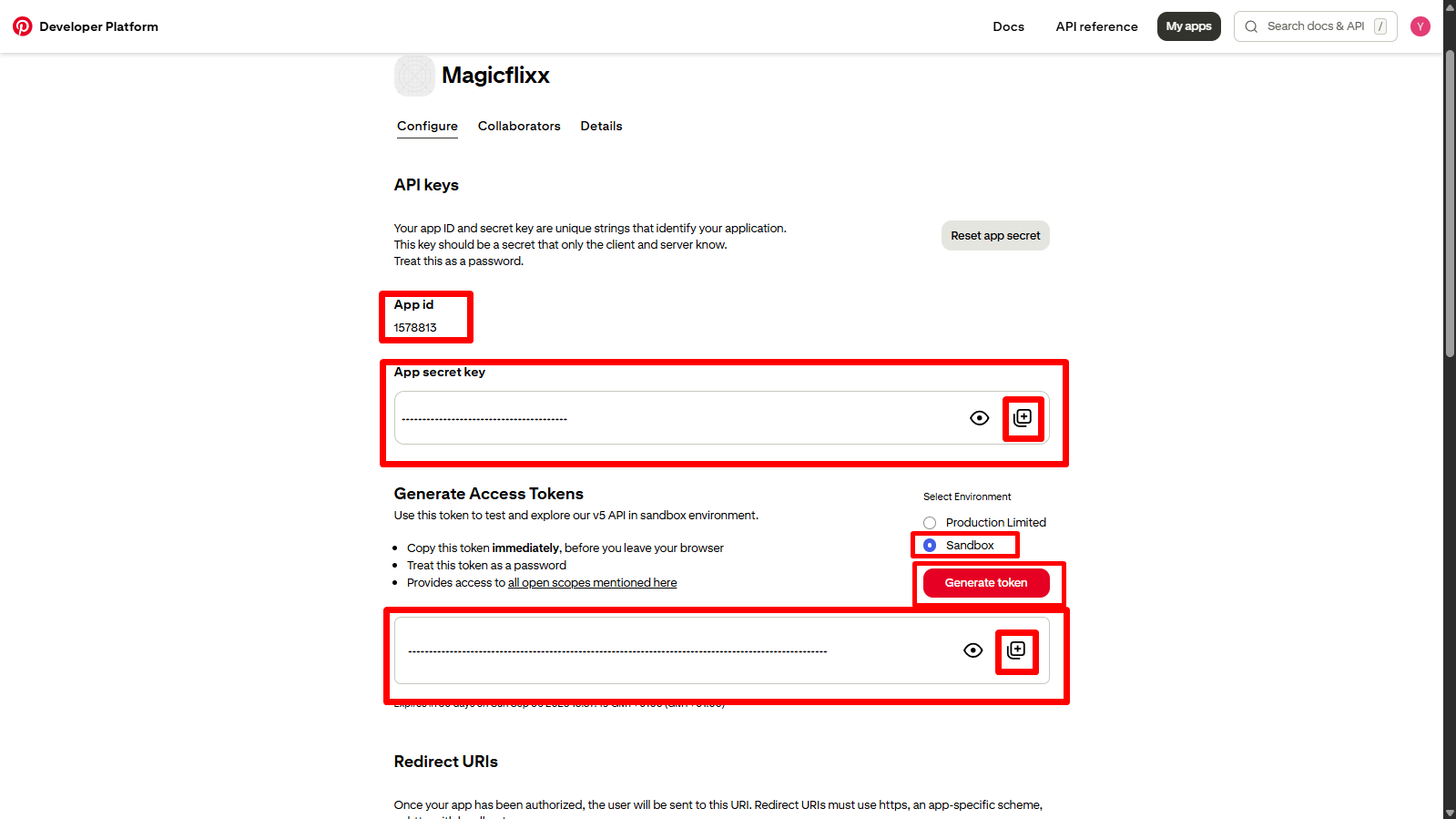
- Scroll back to the top.
- Find the “App id” and “App secret key” and copy them.
- If you don’t have full access you can use the Sandbox environment, just toggle it on, click “Generate Token” and copy the token.
- Go back to Magicflix: In your MagicFlix profile, under Platform App Keys, find Pinterest
- Then paste the “App ID” in the “Client ID” field and the “App secret key” or the “Sandbox token” in the “Client Secret” field depending on which one you use
- Finally Click on “Save Credentials”
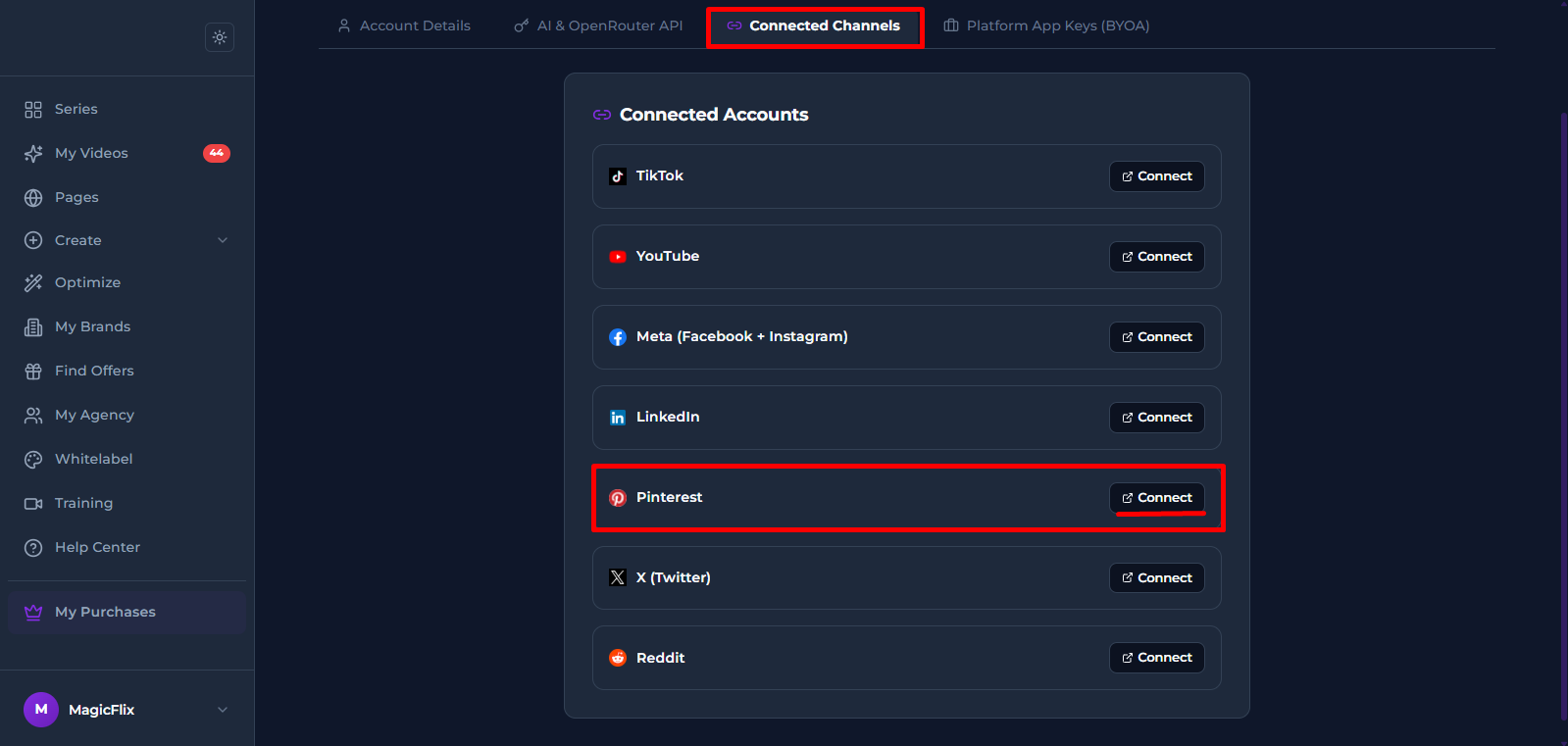
- Head to the “Connected Channels” tab, Find Pinterest, and click on Connect
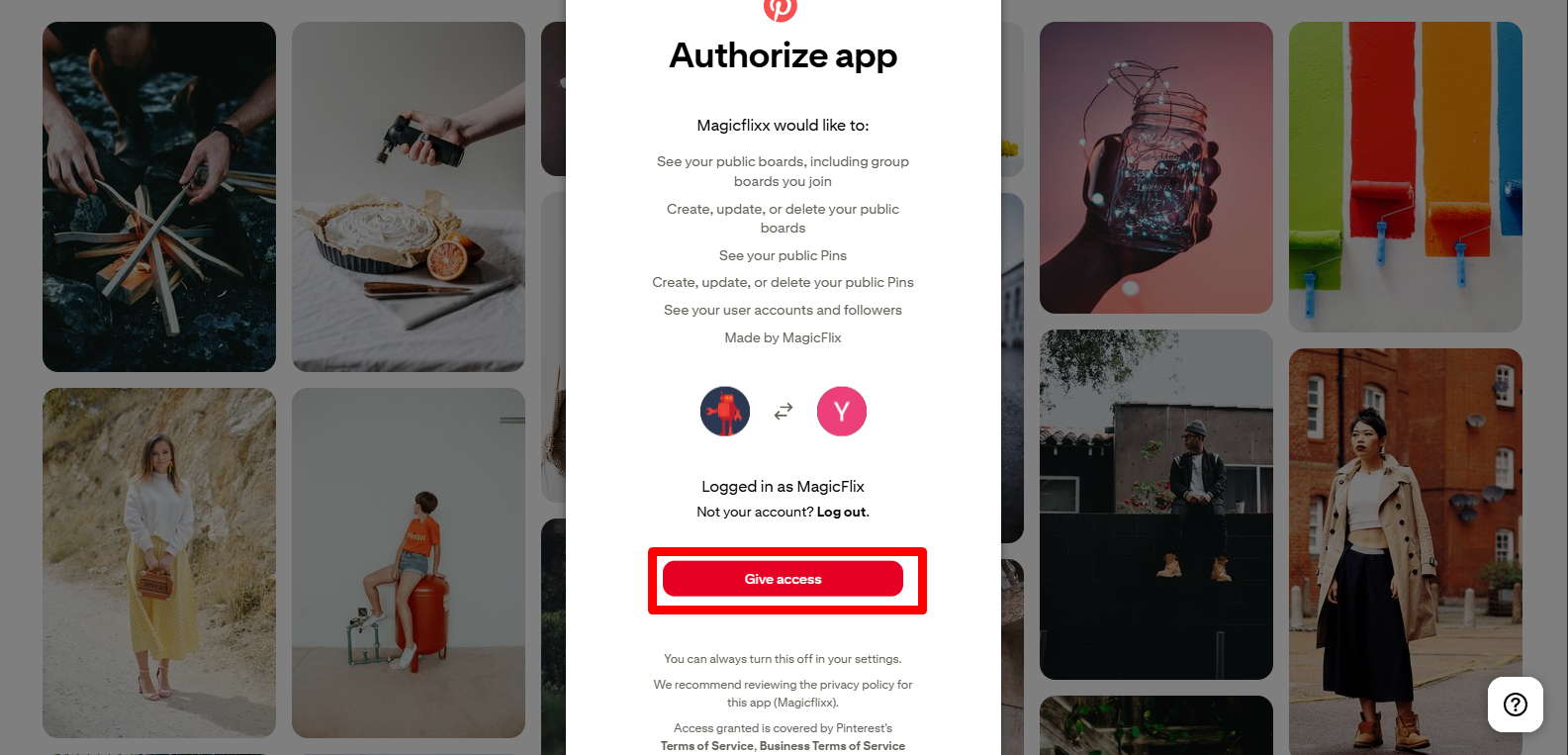
- Click “Give Access” to give Magicflix the required permissions
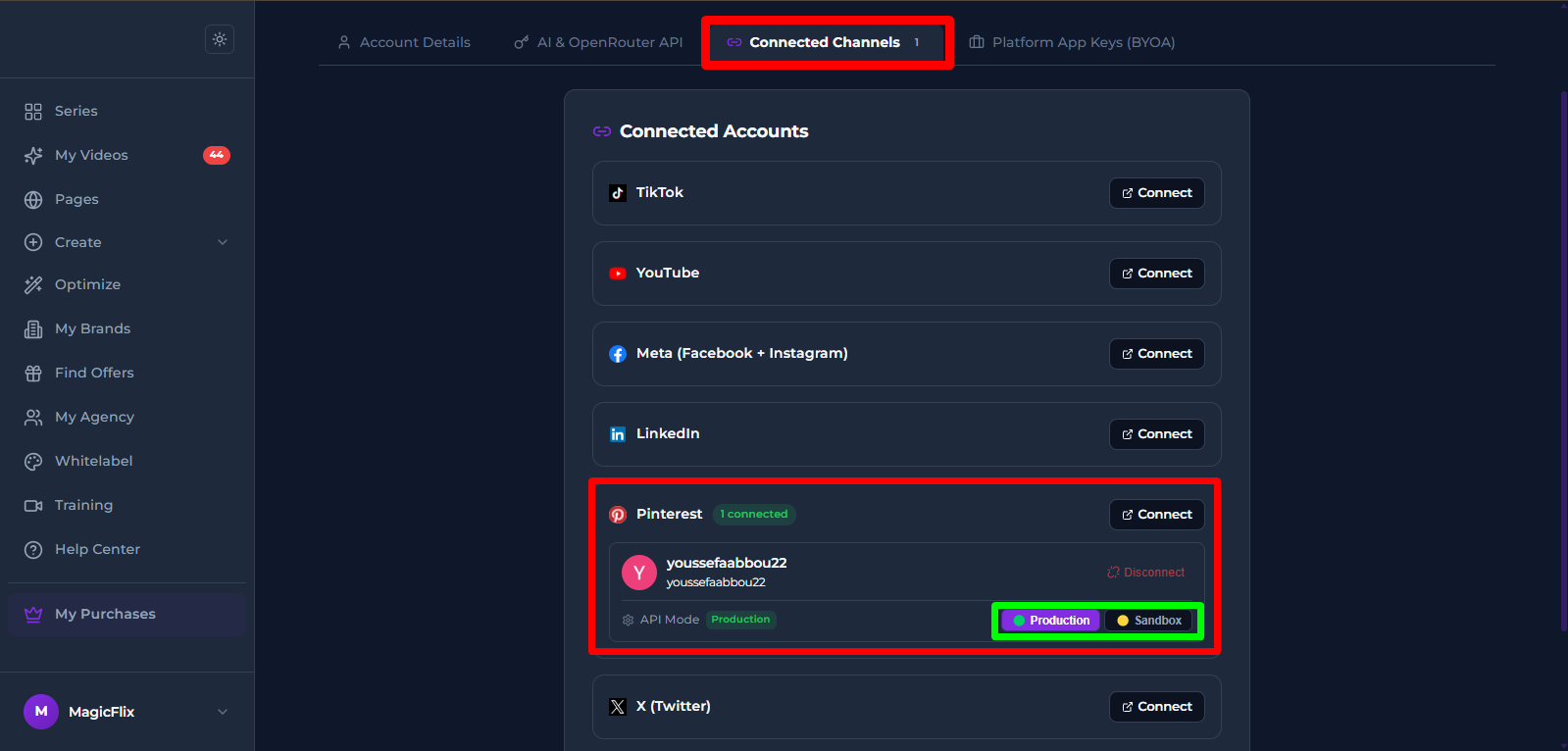
- Your account should now be connected. Depending on which token you used, you can select Production or Sandbox.
Still No Luck ? We can help you
Create a ticket, we’ll get back to you as soon as possible.
Submit a Ticket