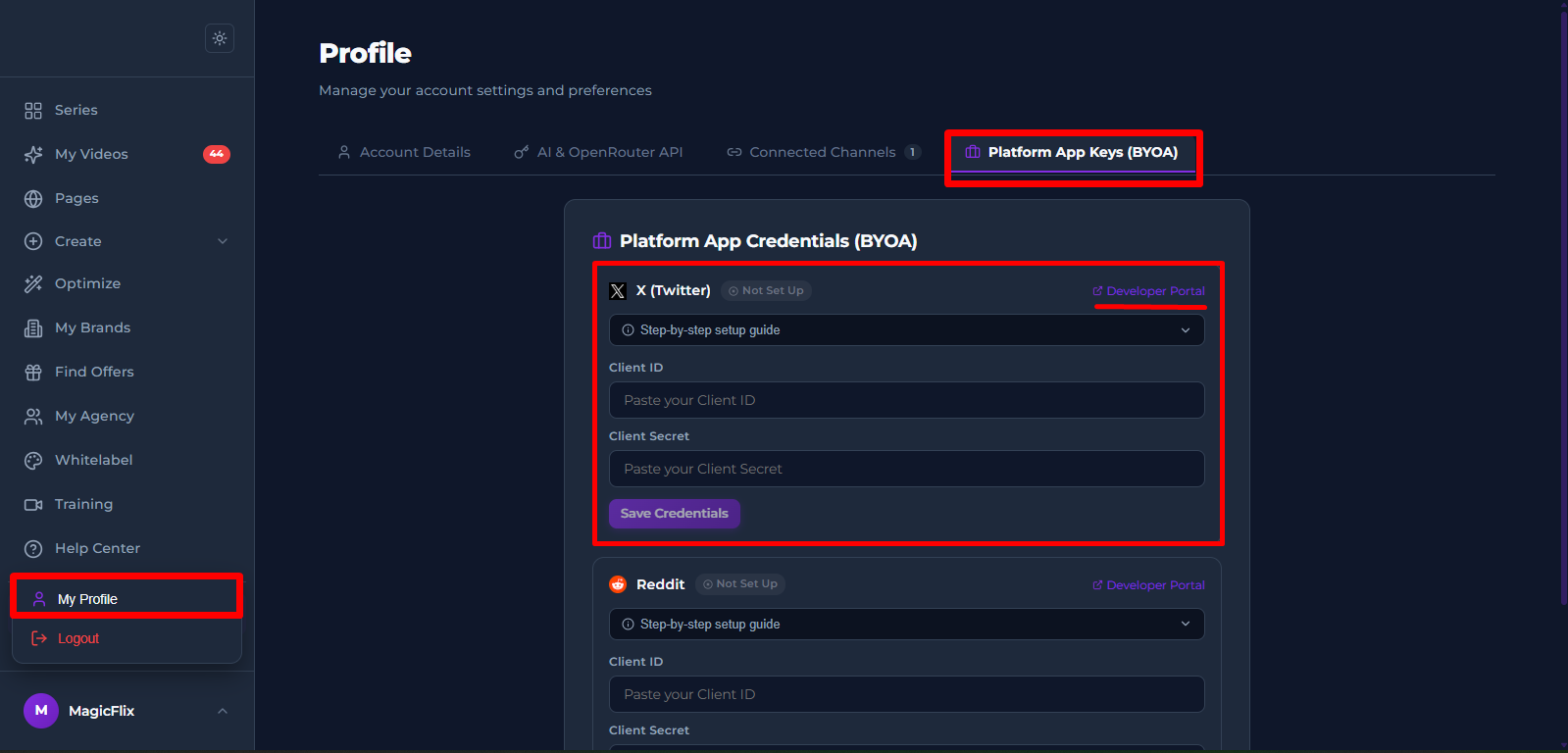
- From your Magicflix dashboardFrom your MagicFlix dashboard, go to your profile section.
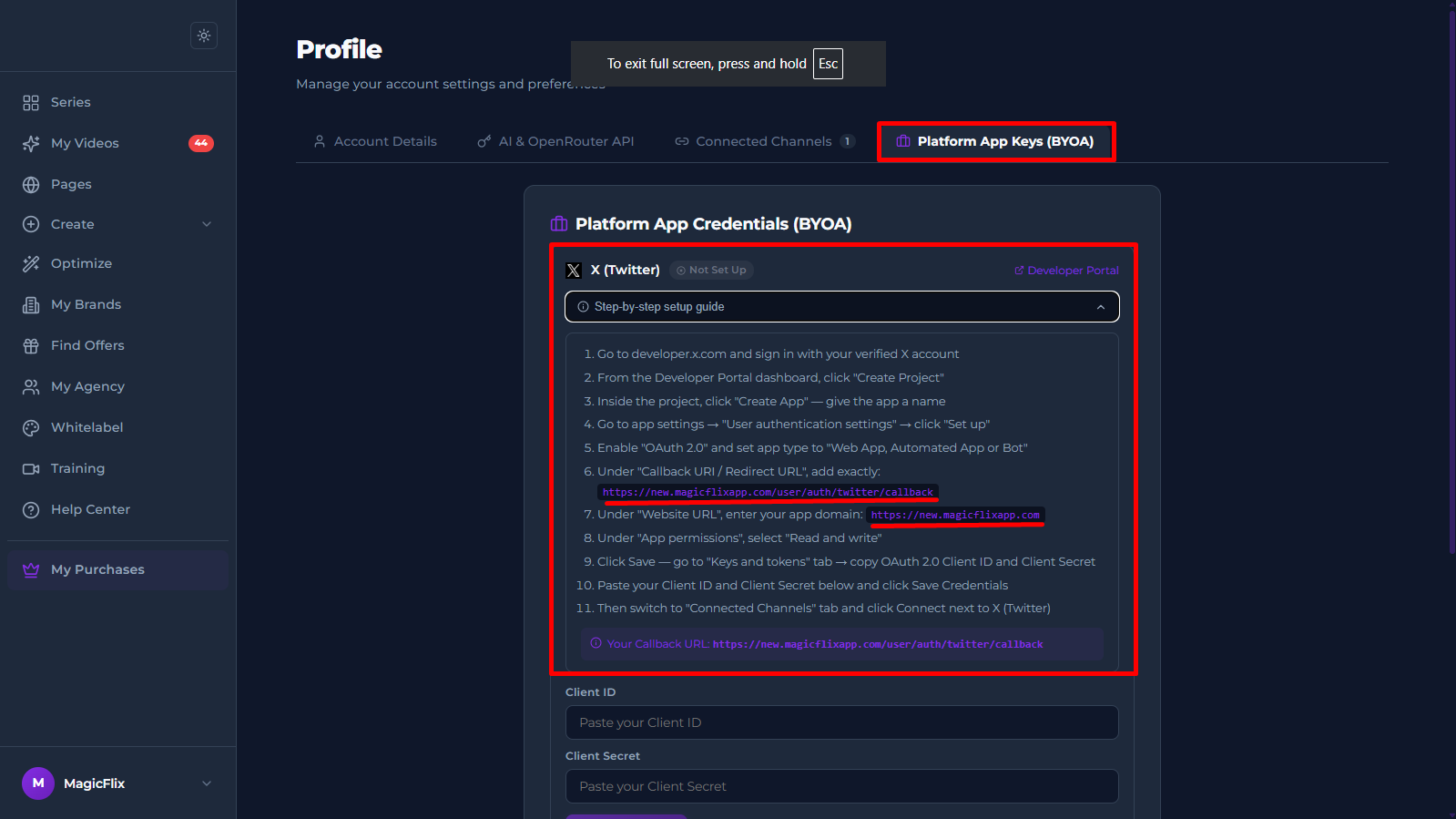
Click the "Platform App Keys" tab.
Find X and click "Developer Portal".
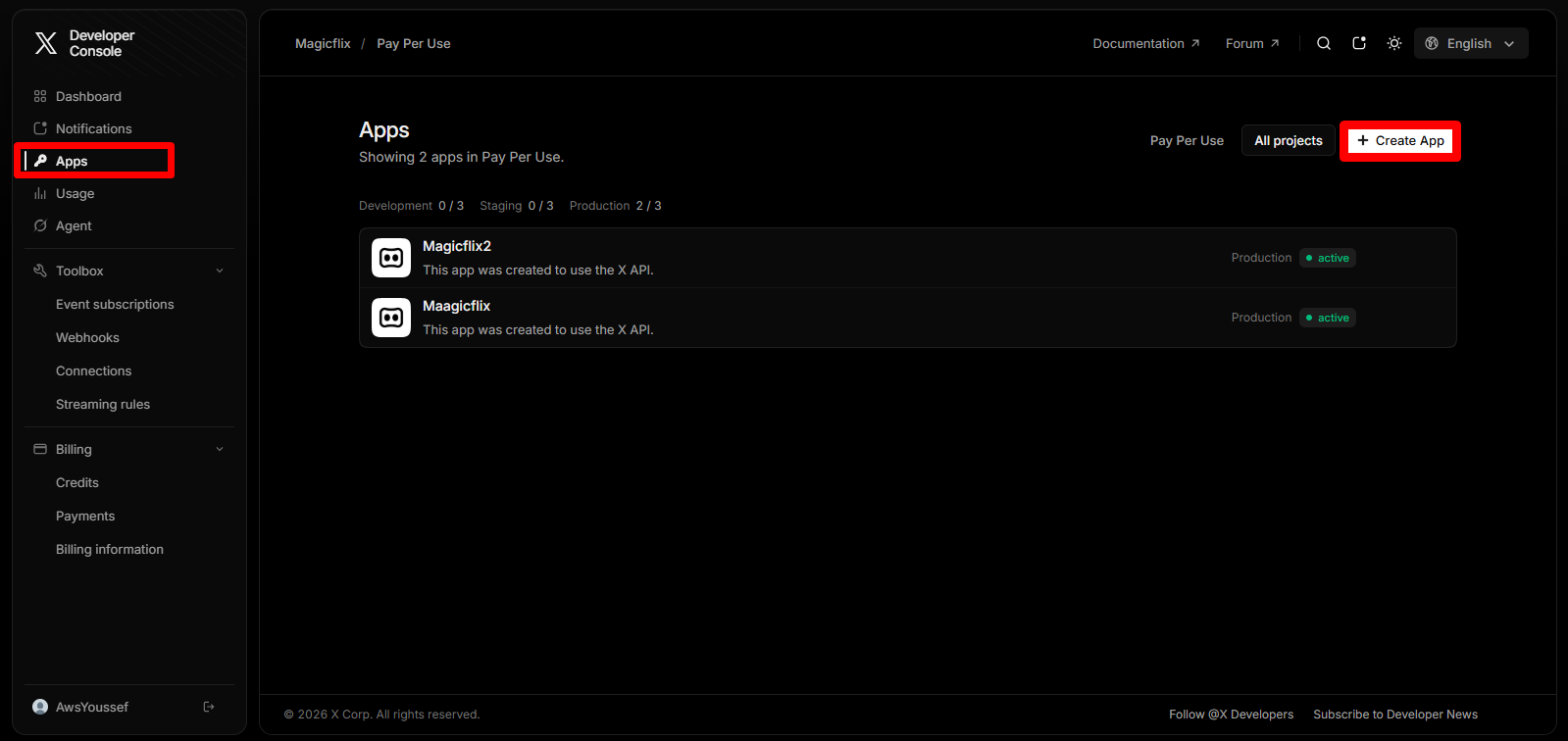
- You will be taken to the X Developer platform (https://console.x.com/)
- Login to your developer account and click on “Create App”
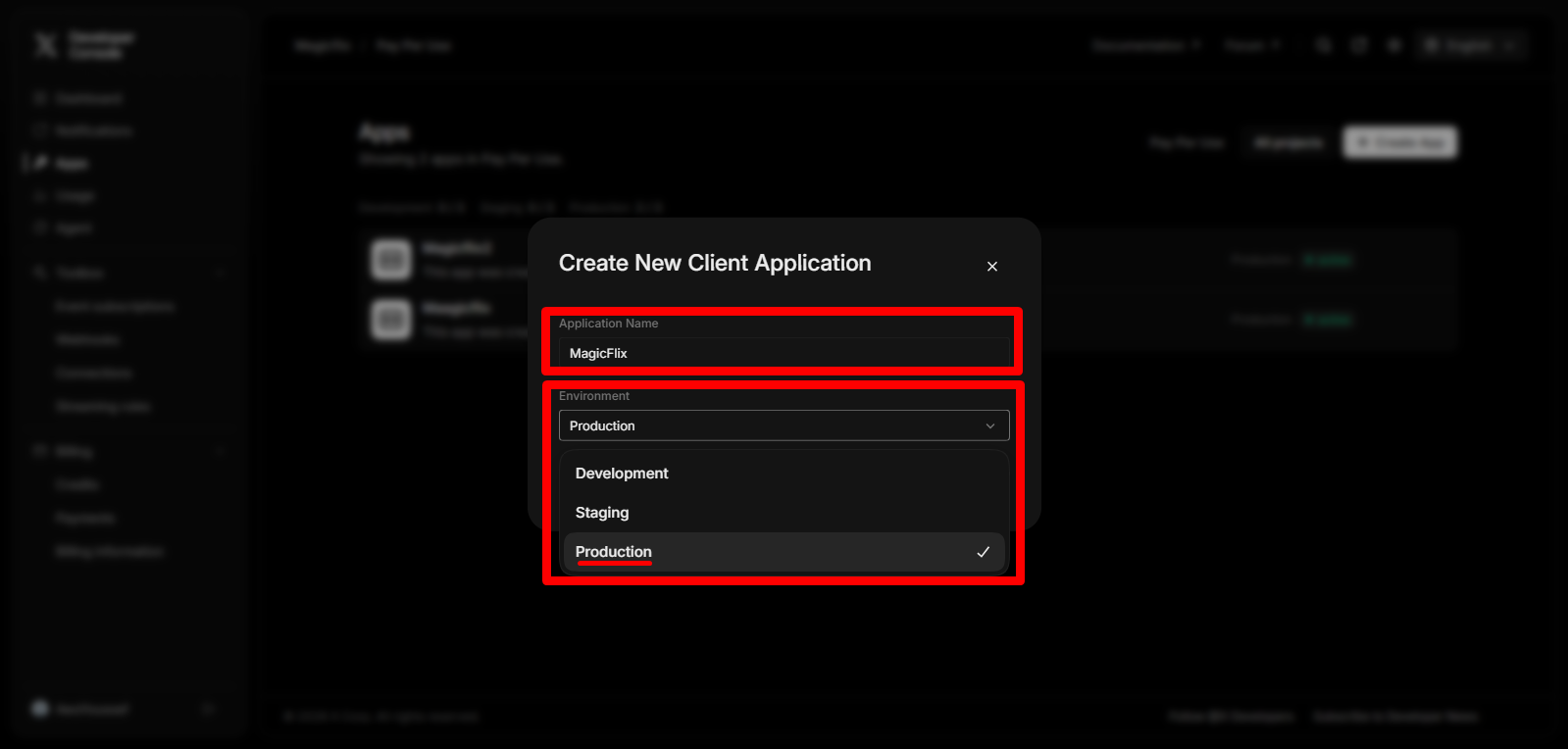
- Add your Application Name, and pick Production for the Envirenment.
- Then click “Create”, a new window will appear just close it for now.
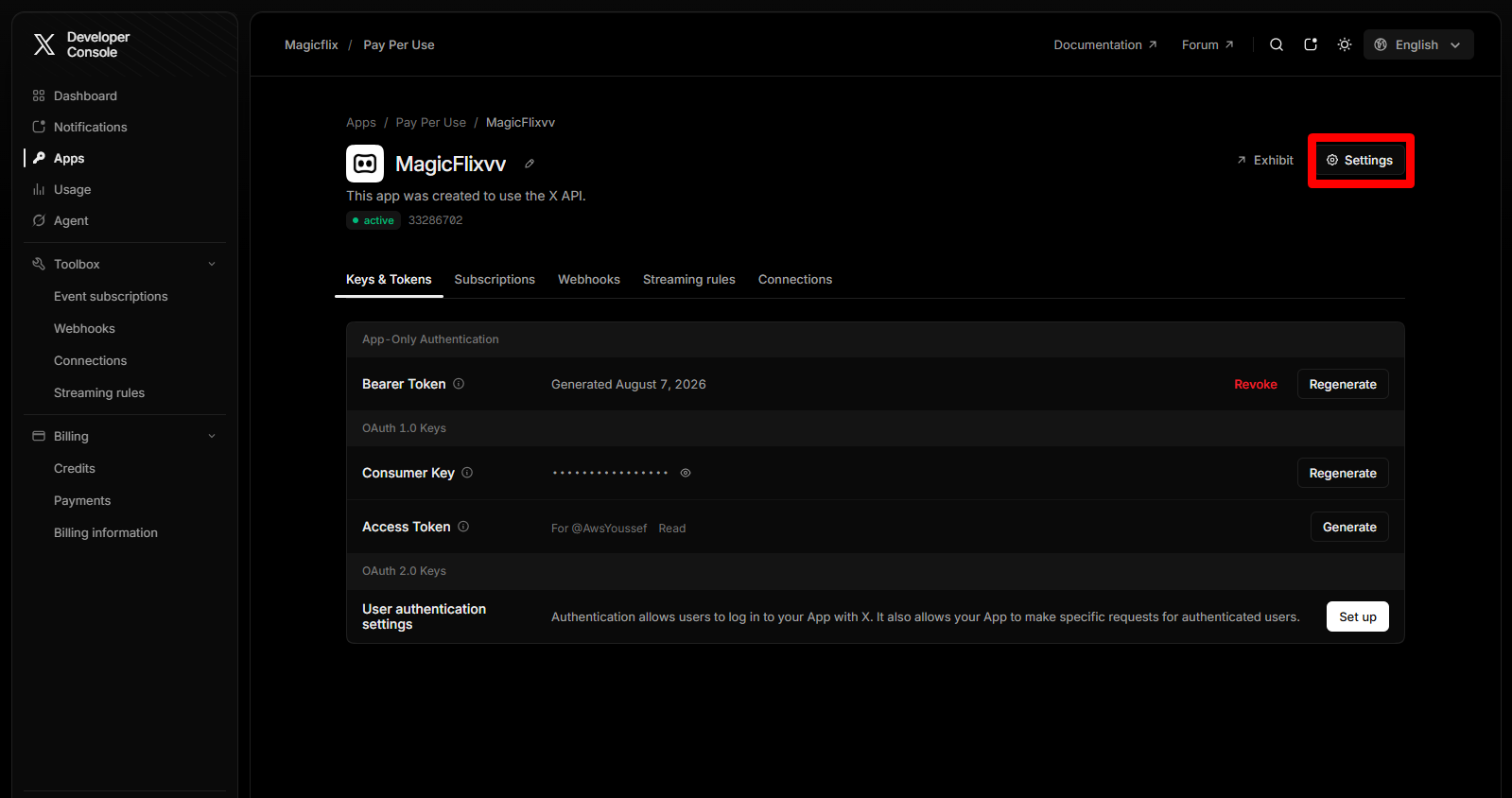
- Click on your App, and click on Settings
- Login to your developer account and click on “Create App”
- Go back to MagicFlix
- Under your profile > Platform App Credentials
- Find X and go to the step-by-step guide.
- In step 6 and 7 you will find the callback URL and the Website URL respectively.
- Copy them both and go back to your X developer account.
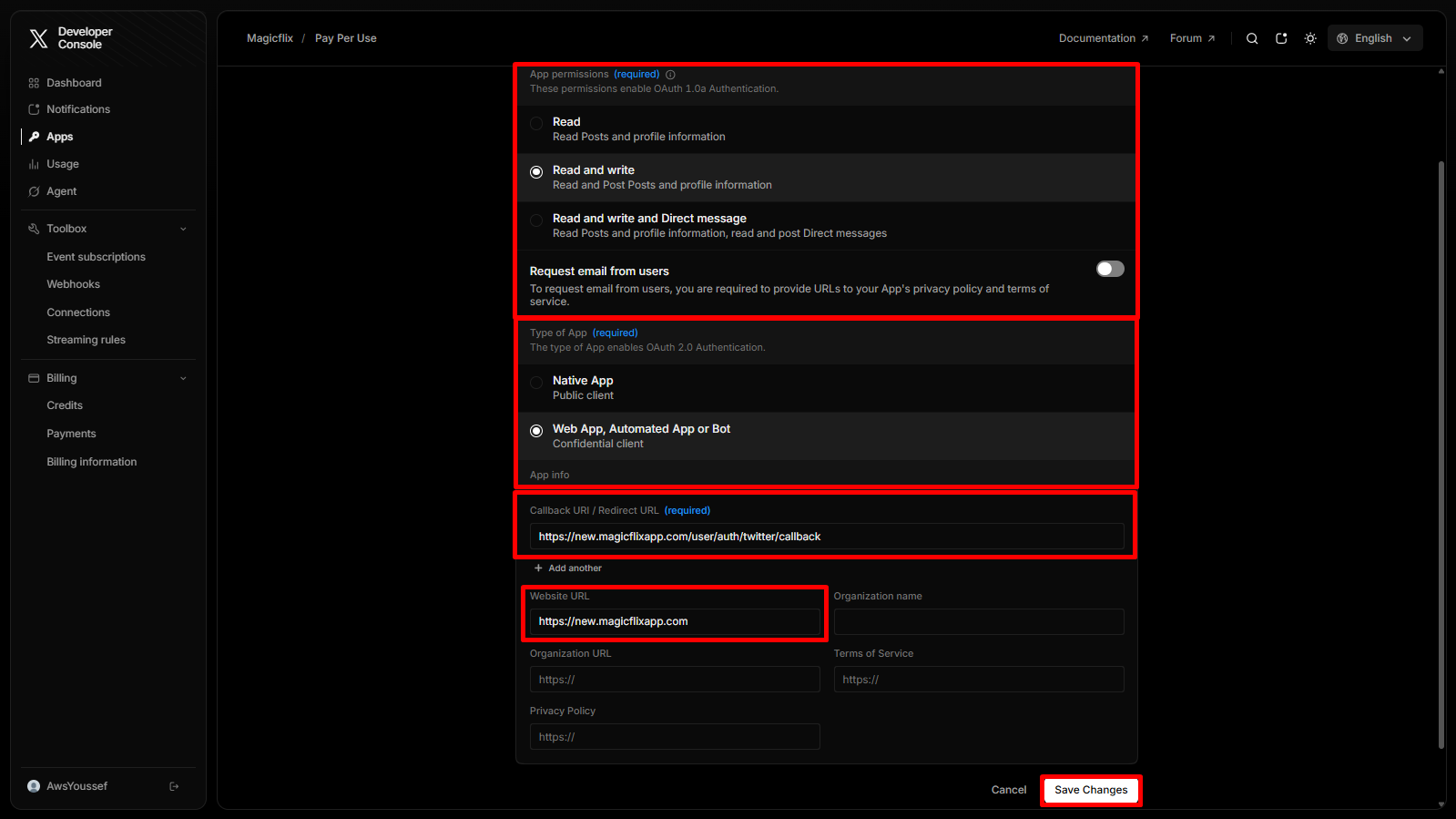
- For the app permissions select Read and write
- For the type of app select “Web App, Automated App“
- Add your callback URL and website URL.
- Click “Save Changes”
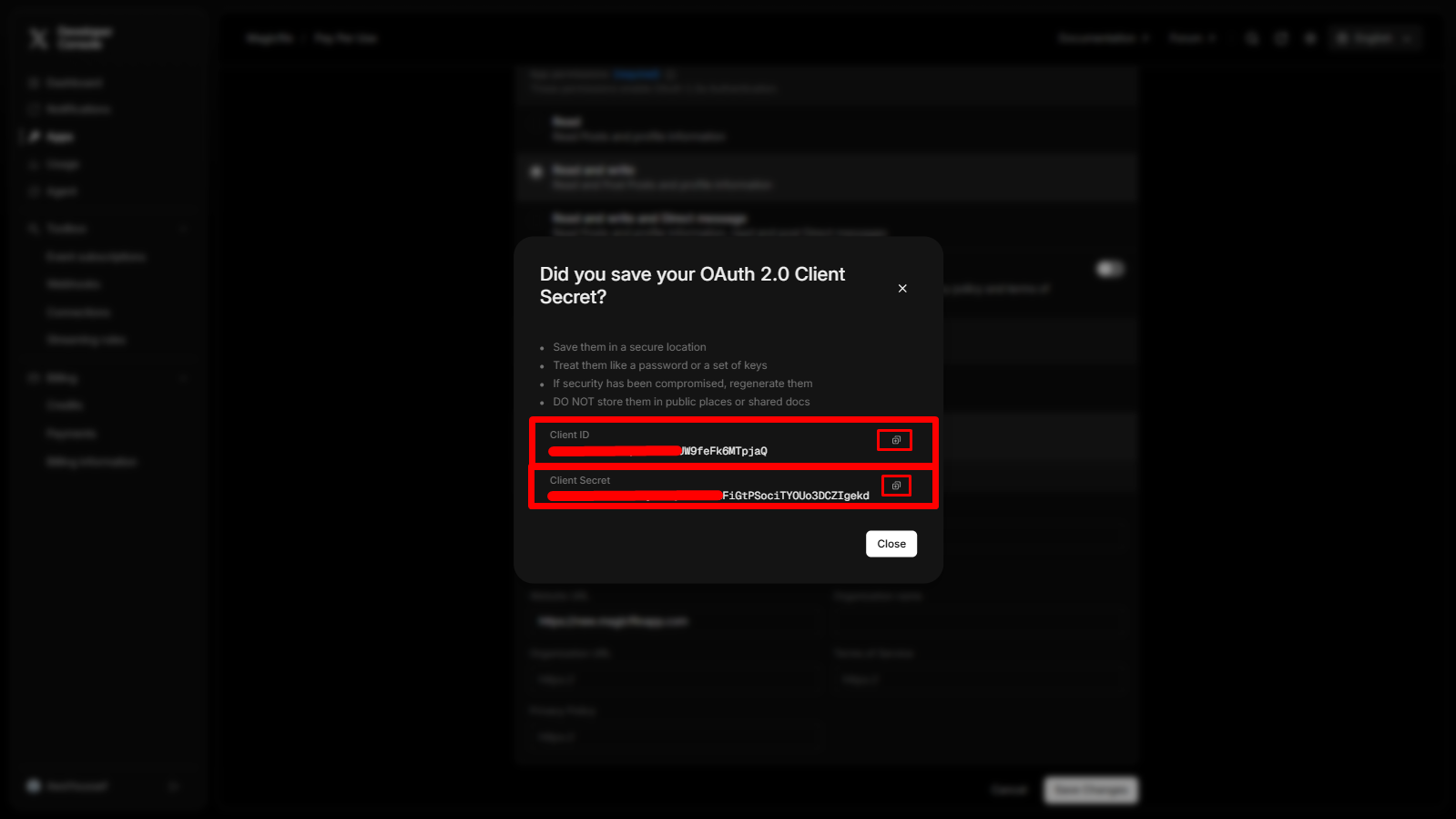
- Your Client ID and your Client Secret will be generated, Copy them both.
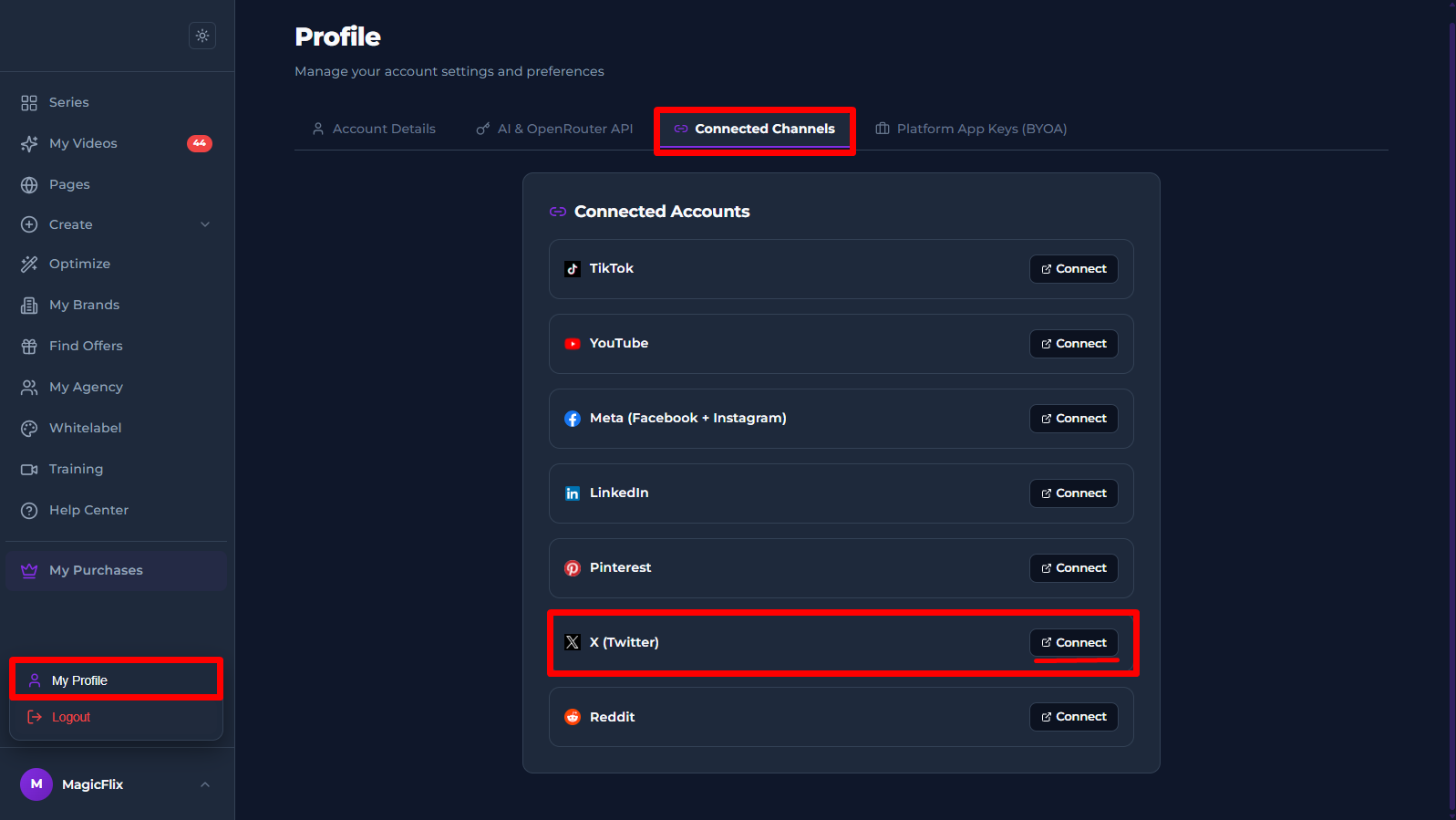
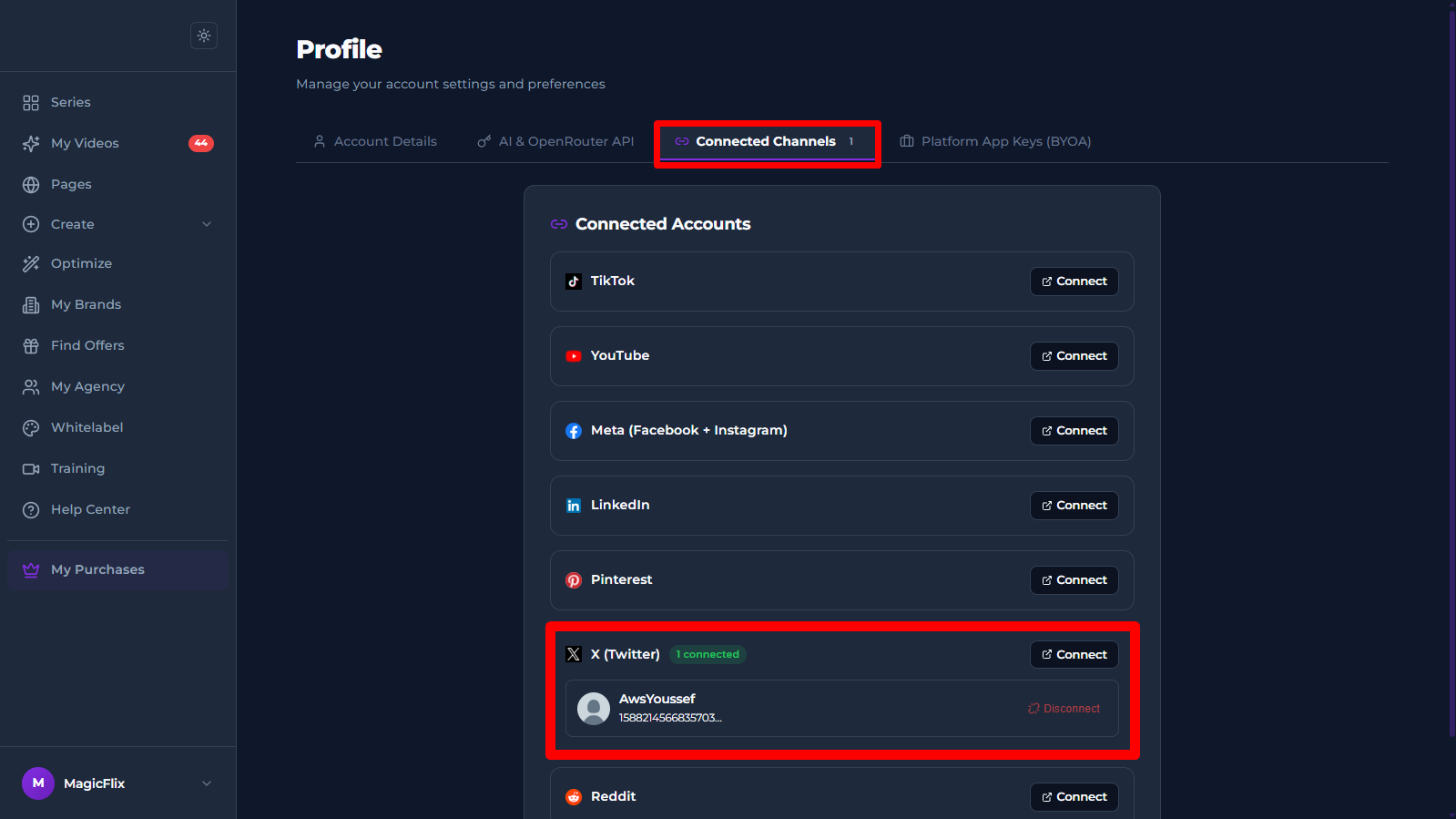
- Go back to MagicFlix, under your profile, in the “Connected Channels” tab, find X and click “Connect”
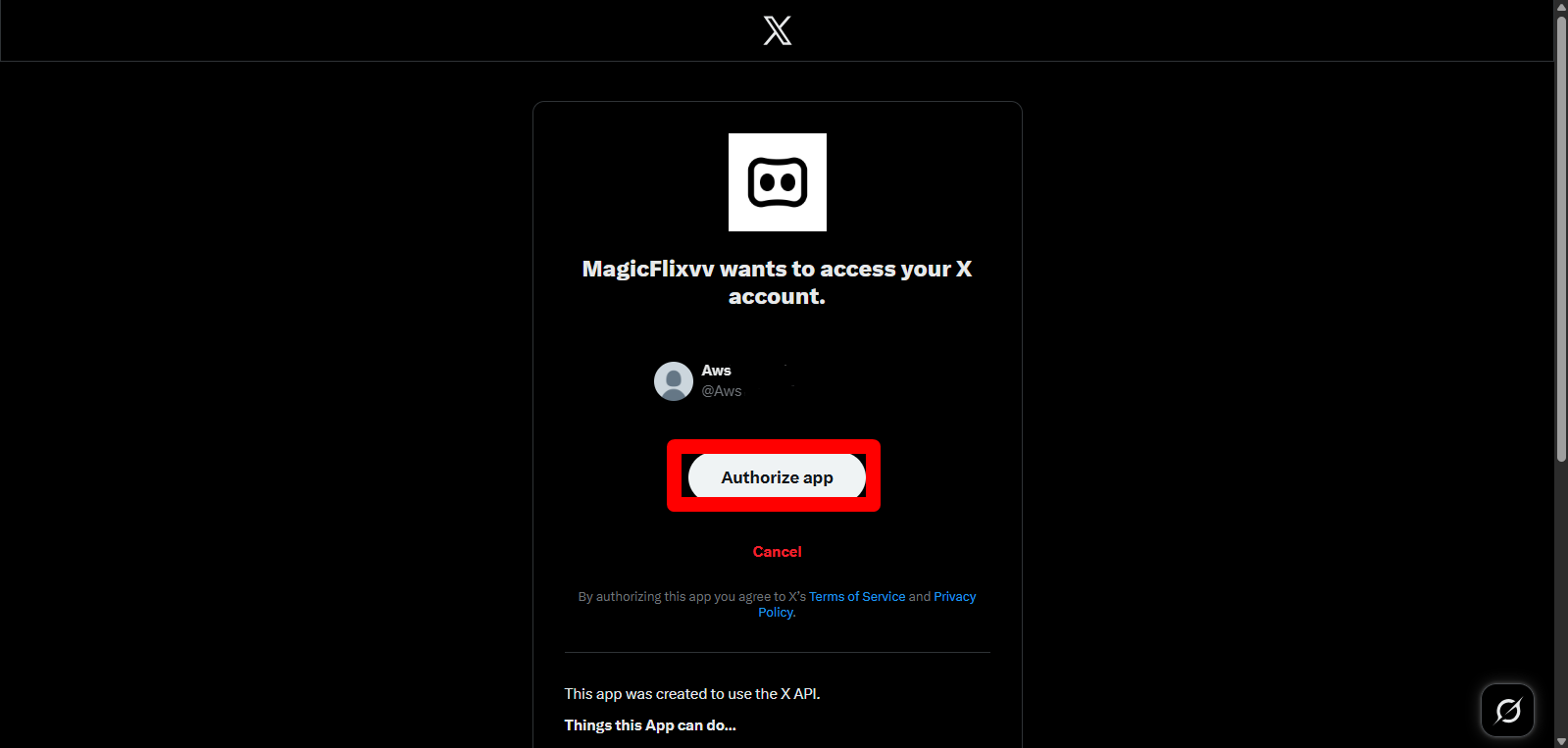
- Click “Authorize App” to give Magicflix the required permissions
- Your account should now be connected.
Still No Luck ? We can help you
Create a ticket, we’ll get back to you as soon as possible.
Submit a Ticket