How do I edit my video?
1 month ago
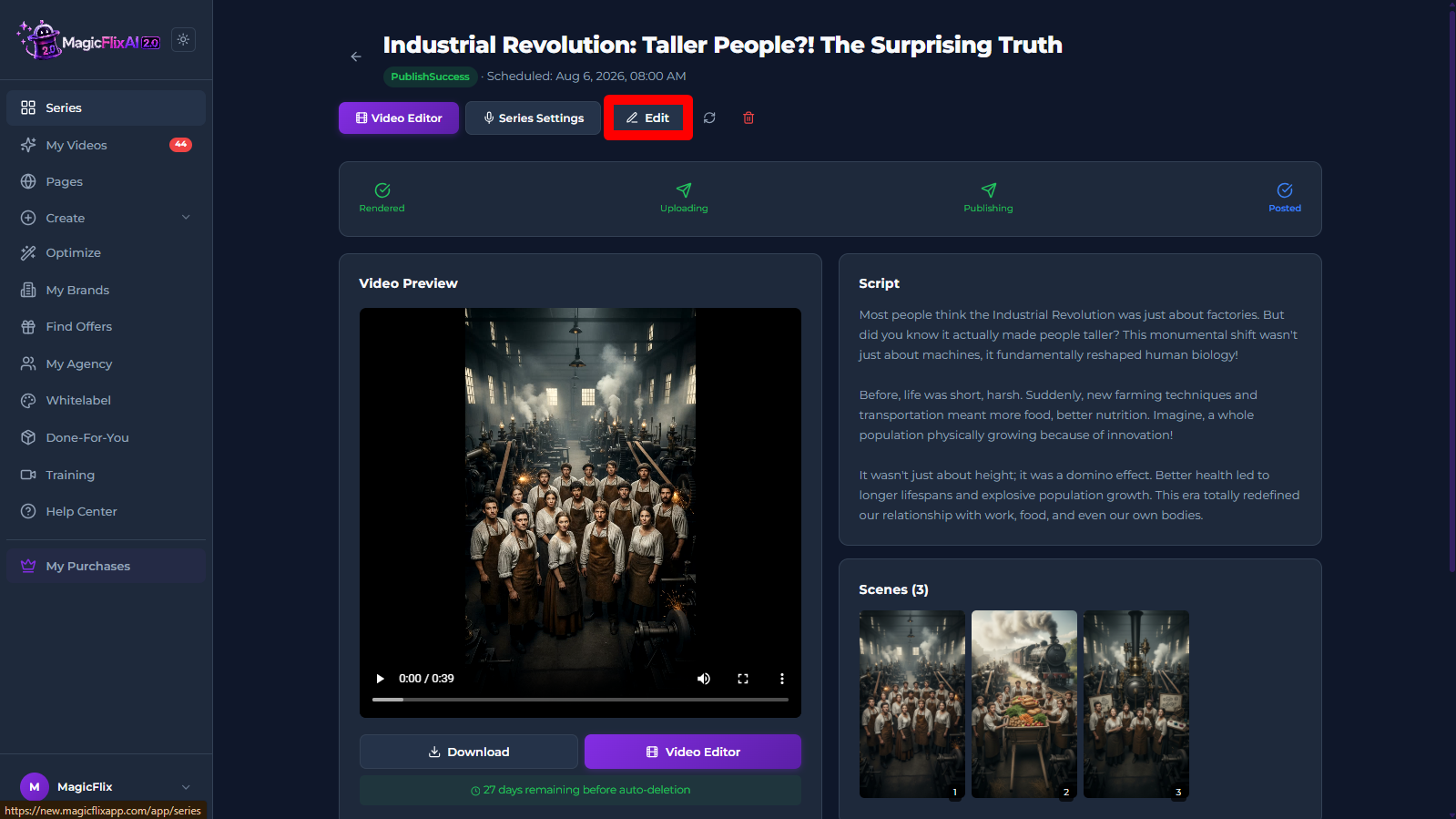
From the series tab click on your series and find the video you want to edit.
- To start editing the video click on the “Edit” button.
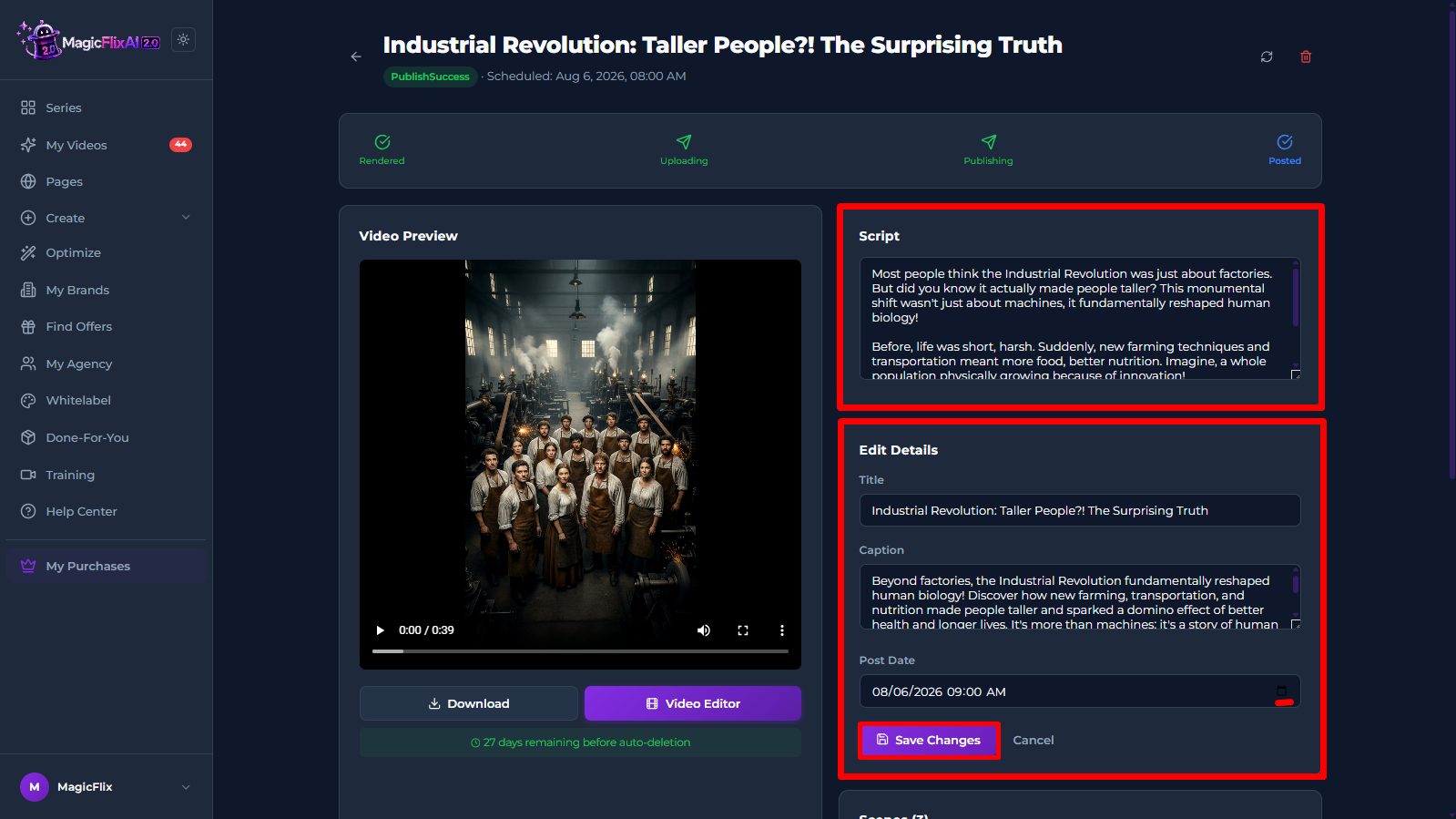
- You can edit the script of the video.
Edit the title and caption.
Change the posting date.
Once done just click “Save Changes”
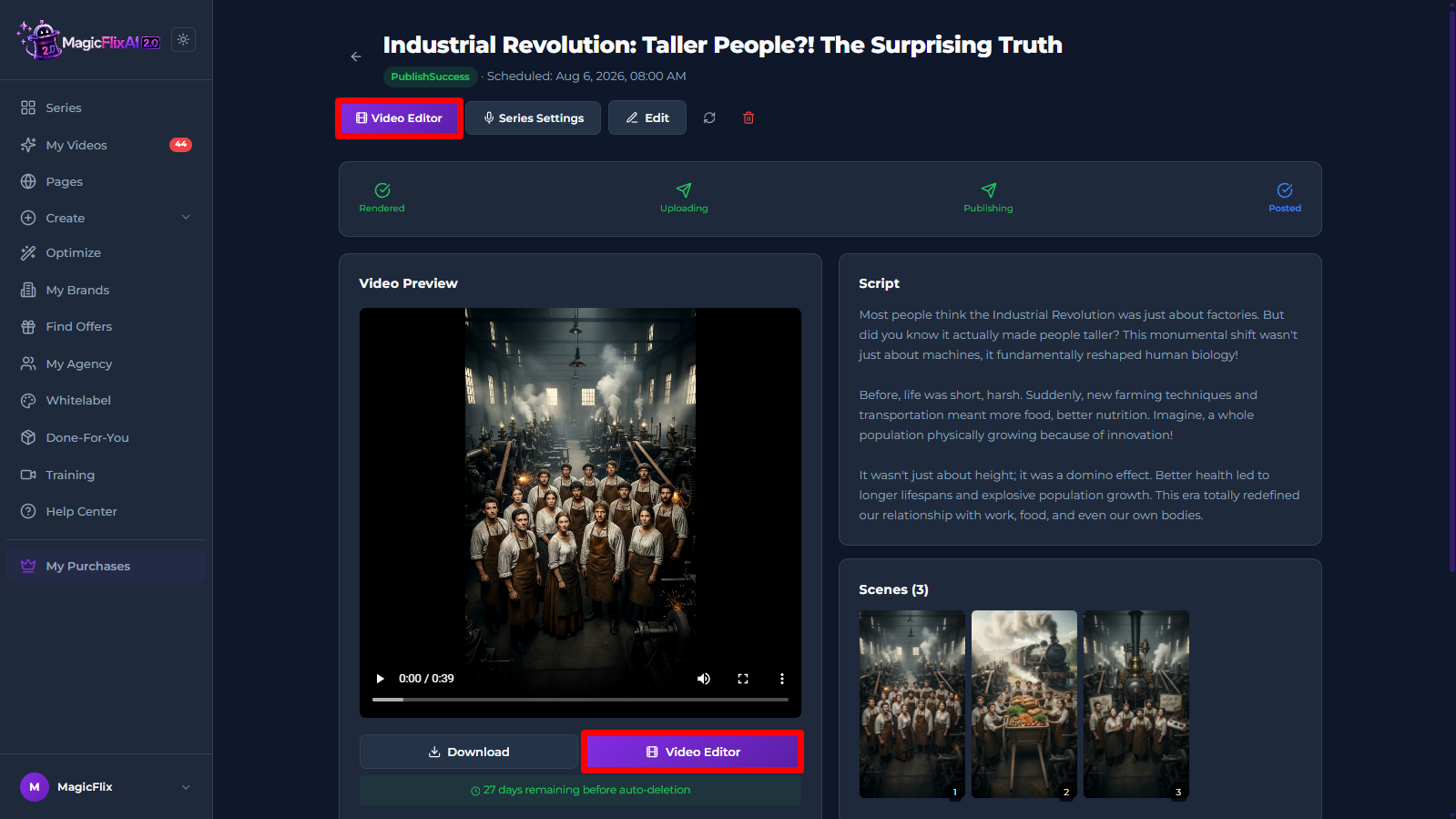
- You can edit the video itself by using the video editor, just click on “Video Editor”
- The video editor:
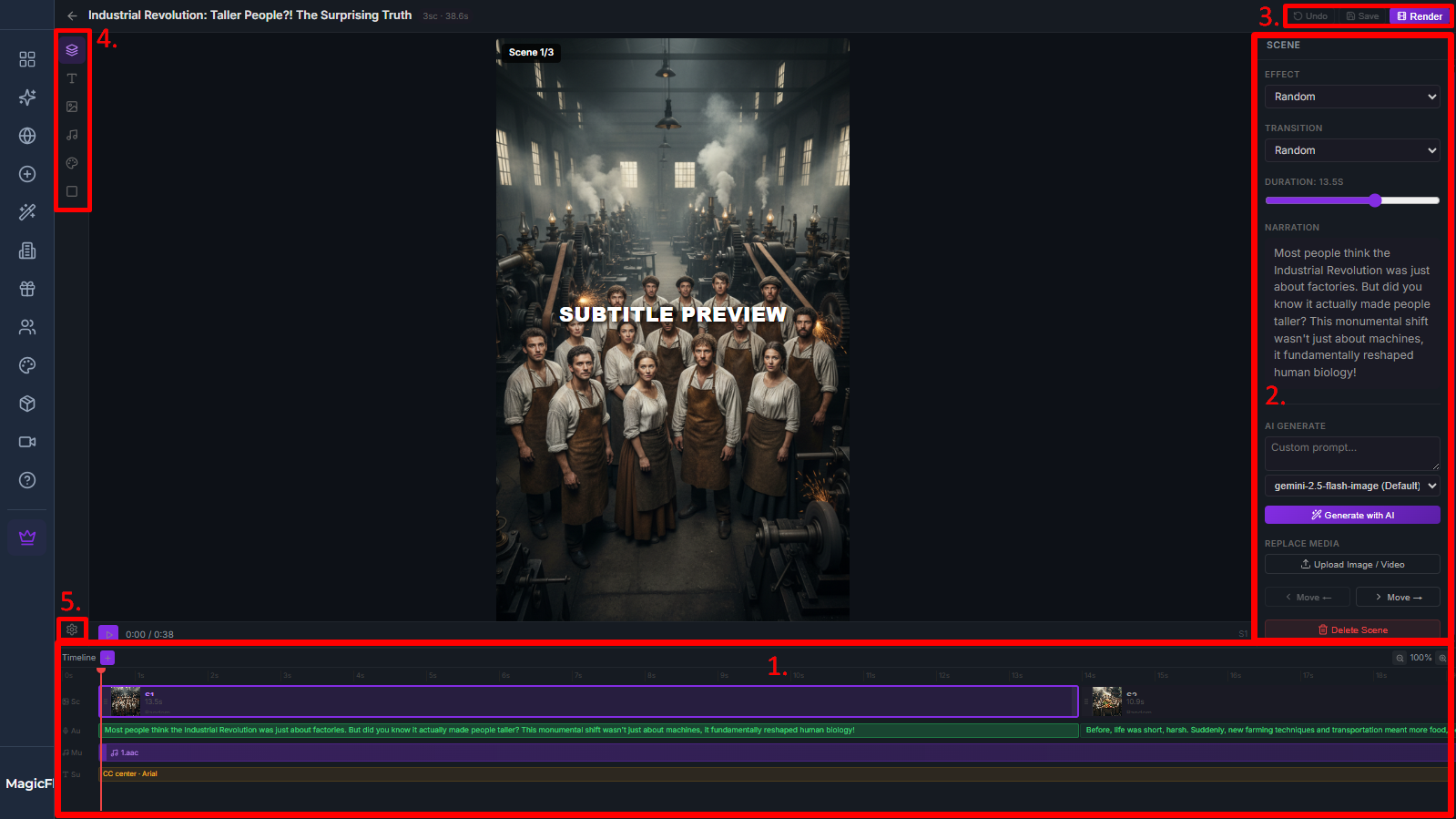
- The Timeline(1): Here you can see your Scenes, Audio, Music, and subtitles.
It allows you to adjust the scene length and the order of the scenes. - Scene (2): Here you can the selected scene in the timeline:
- Effect: change the effect of the visual in the scene
- Transition: Change the transition from this scene to the next scene
- Duration: Change the duration of the scene
- Ai generate: This allows you to add a prompt and generate an new image for this scene
- Replace Media: here you can upload a replacement image from your device.
- Move: You can move your scene to the left or right, this changes the order of the scenes.
- (3) Here you can:
- Redo: redo any change that you made
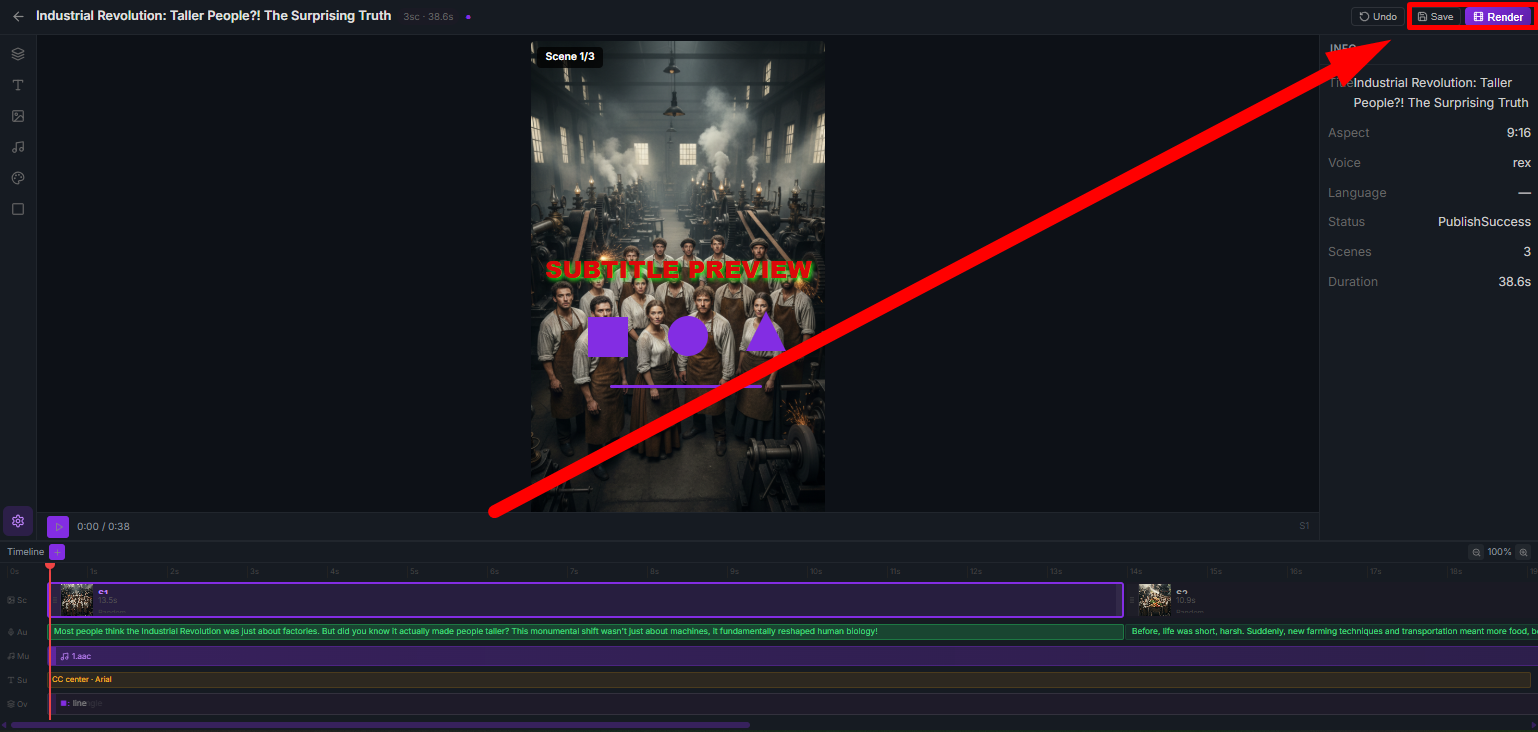
- Save: save any change once you are done editing
- Render: render your video once you’re happy with the changes.
- Tabs (4):
- Scene: the first is your regular scene settings
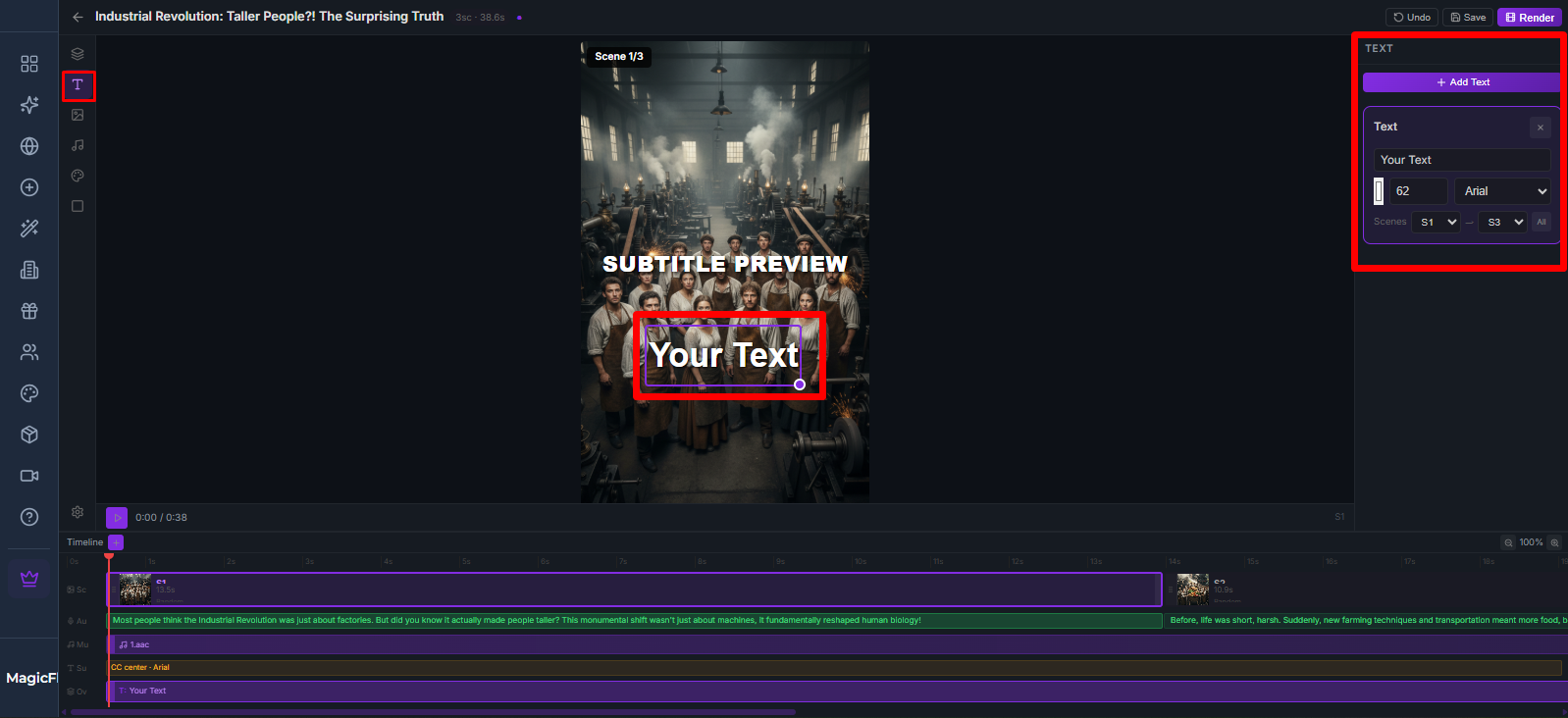
- Text: This allows you to add custom text to your scene
- Media: It allows you to: Add new scenes either by importing visual assets from your device, or generating one using a prompt.
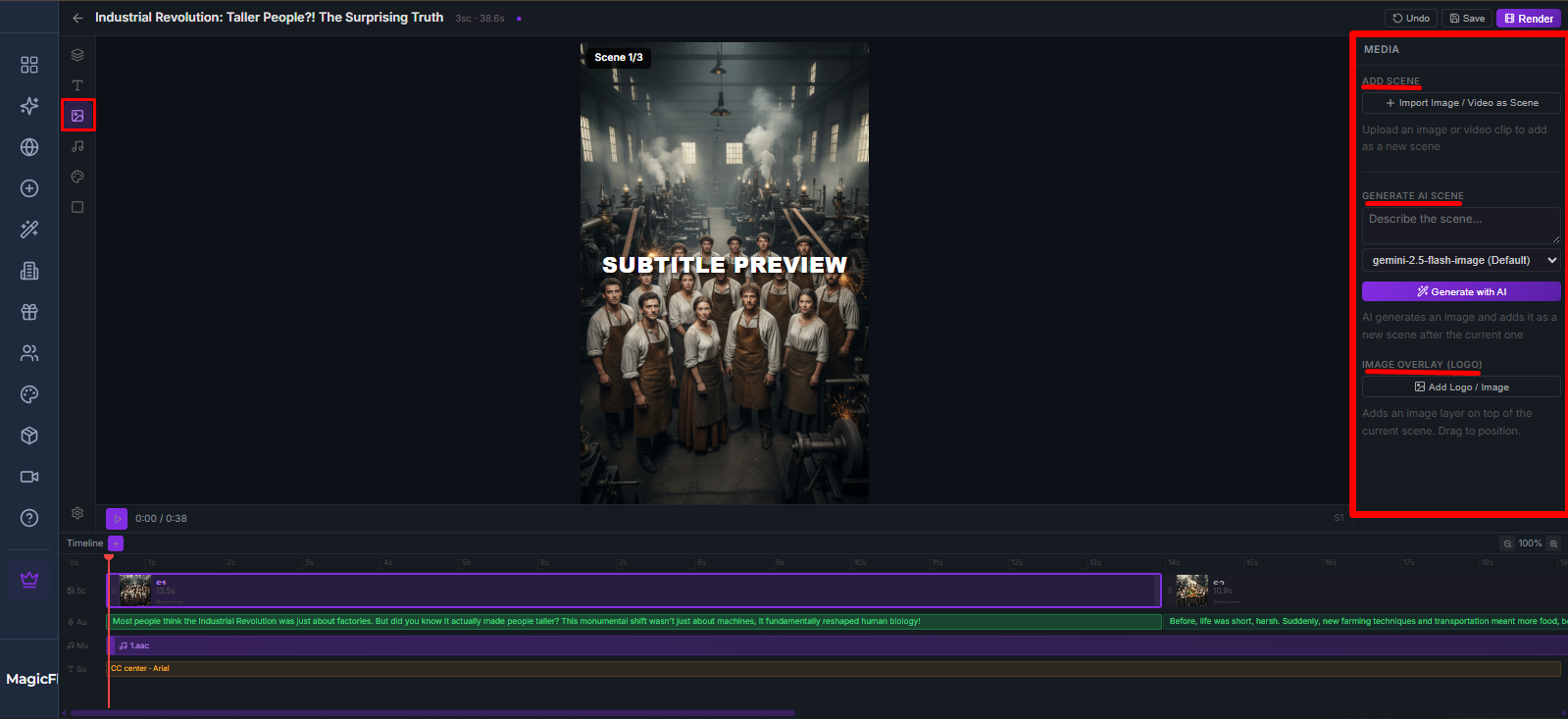
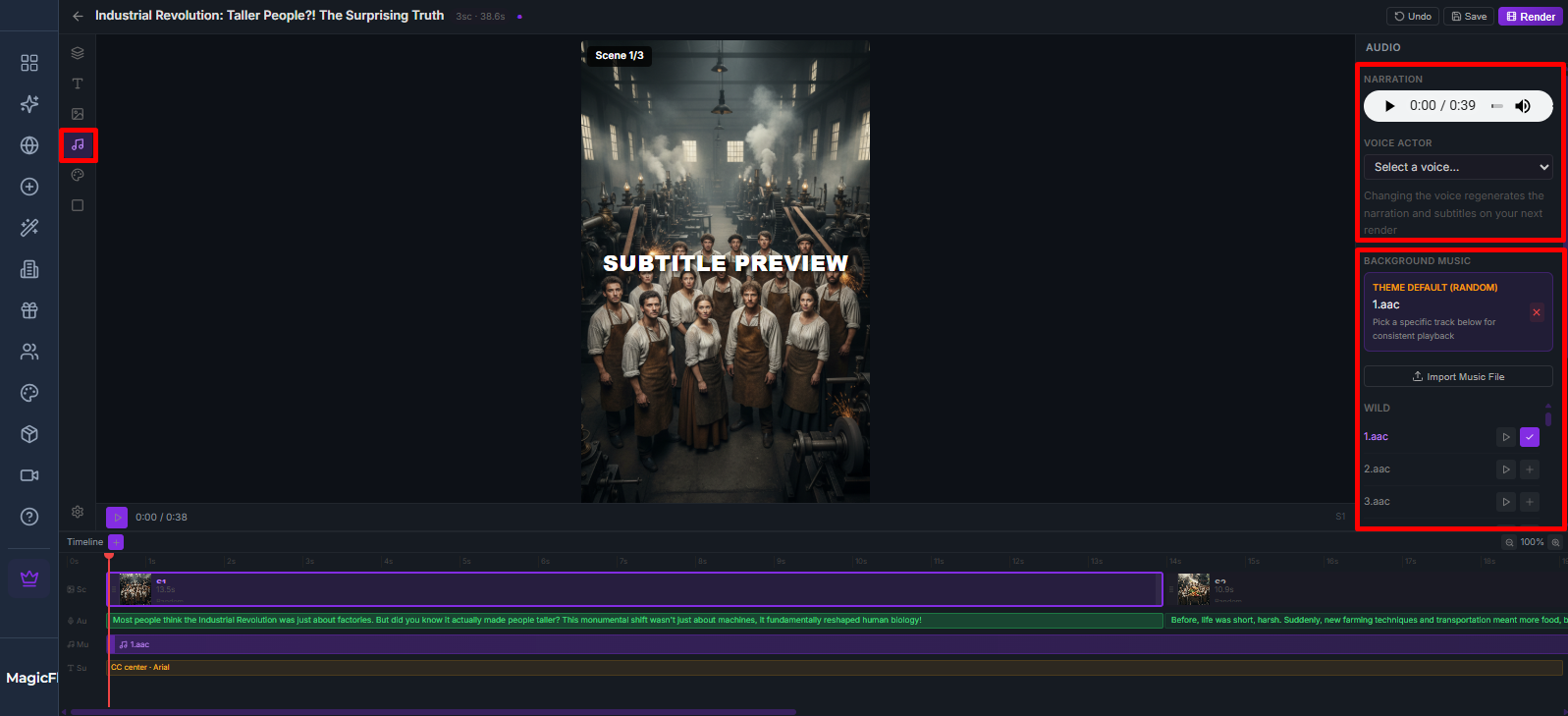
It also allows you to add a Logo to your video to add your own branding. - Audio: You can preview your narration and change the voice if you’re not satisfied with it.
You can also change the Music for a different one or upload your own music.
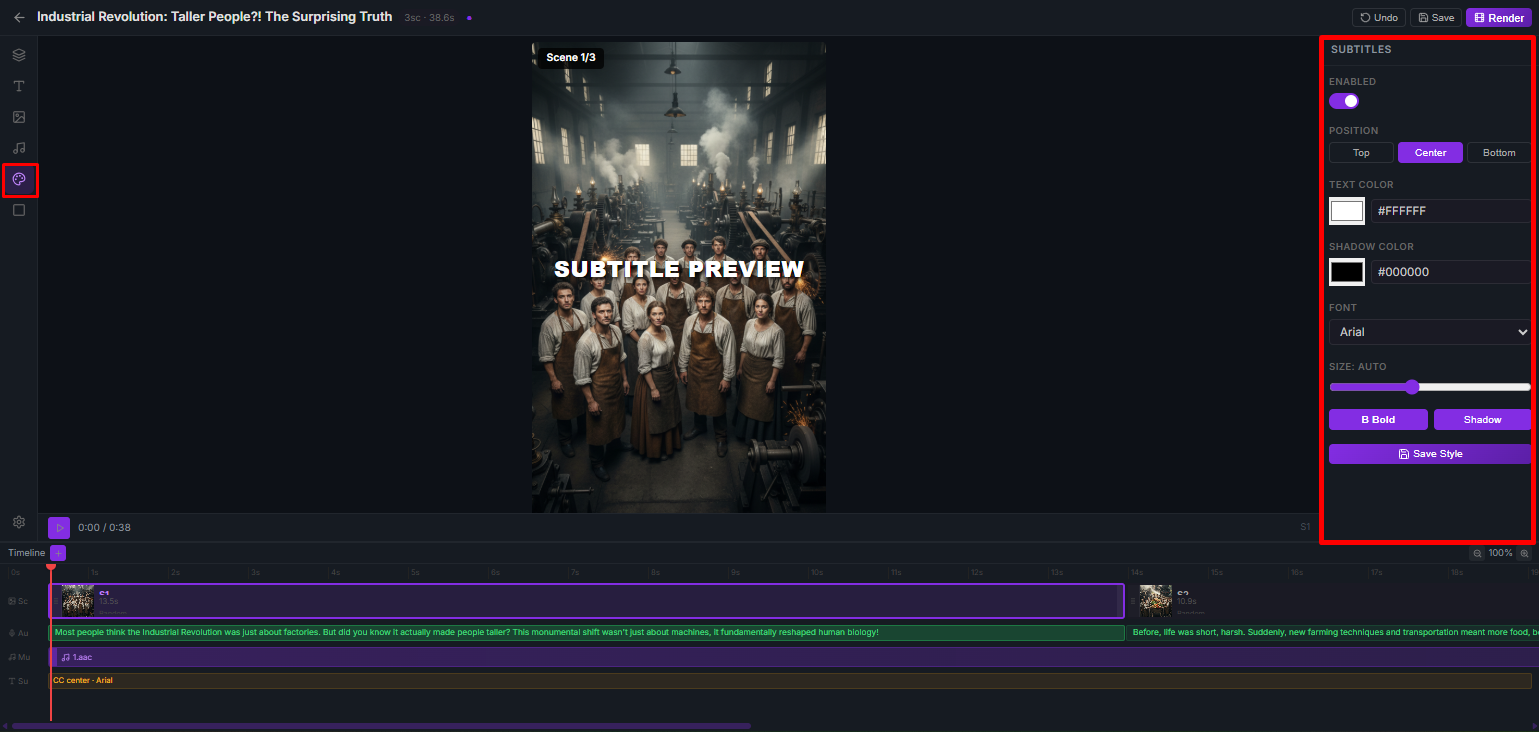
- Subtitles: Here you can customize your subtitles, you can disable them, change the positioning and color, change the font and size, make it bold, and add a shadow.
Once done just click on “Save Style”
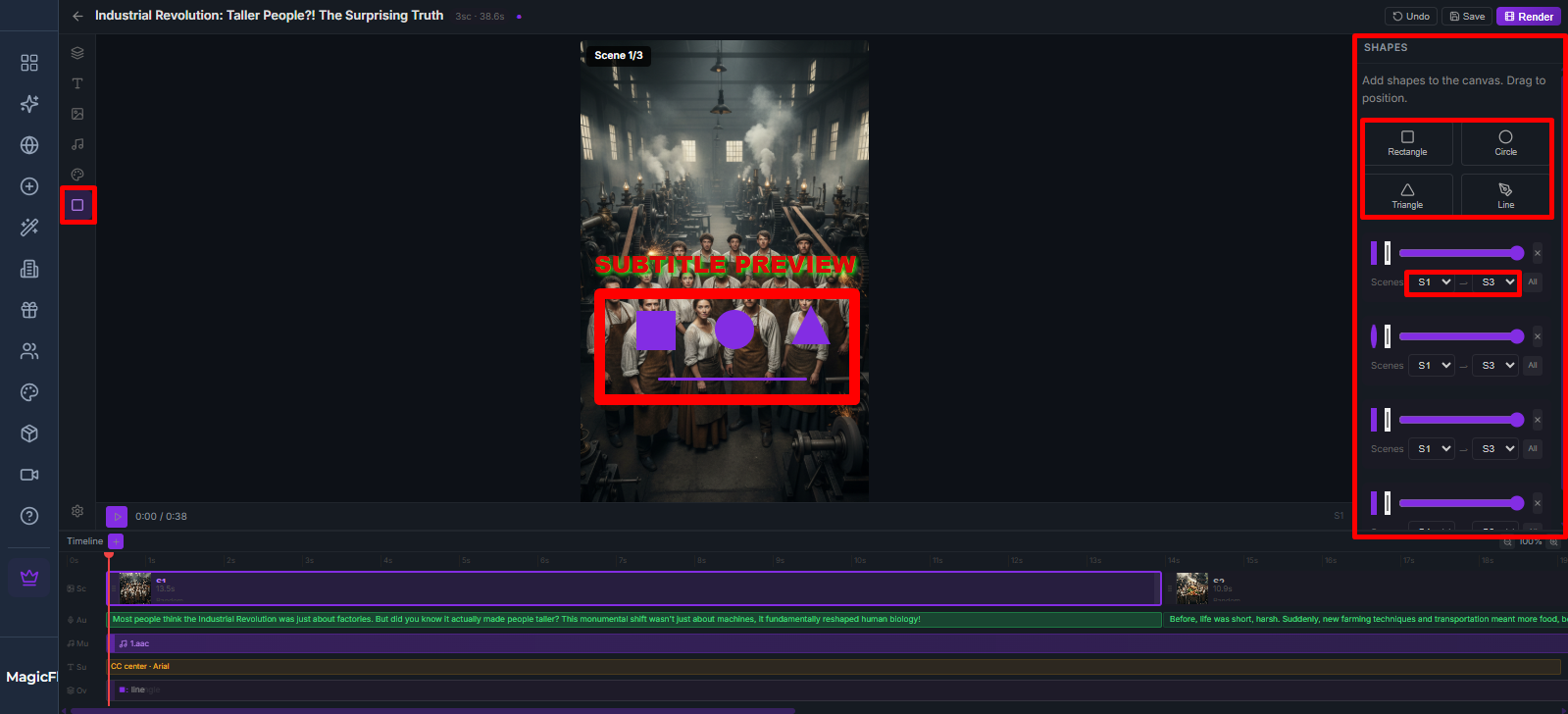
- Shapes: add shapes to your video like triangles, circles, and lines.
You can also set which scenes the shapes will appear in.
- Info (5): here you can see general information about your video.
- The Timeline(1): Here you can see your Scenes, Audio, Music, and subtitles.
- Once you are done editing click save and then render.
Still No Luck ? We can help you
Create a ticket, we’ll get back to you as soon as possible.
Submit a Ticket