MagicFlix 2: How do I create a single video?
1 month ago
First of all, make sure that your social media accounts are linked in case you want to automatically post to Facebook, Instagram, YouTube, or TikTok, ...
You can read our article about how to link your social media, Facebook for instance, with MagicFlix:
https://help.magicflixapp.com/knowledge-bases/14-magicflix-2-social-accounts
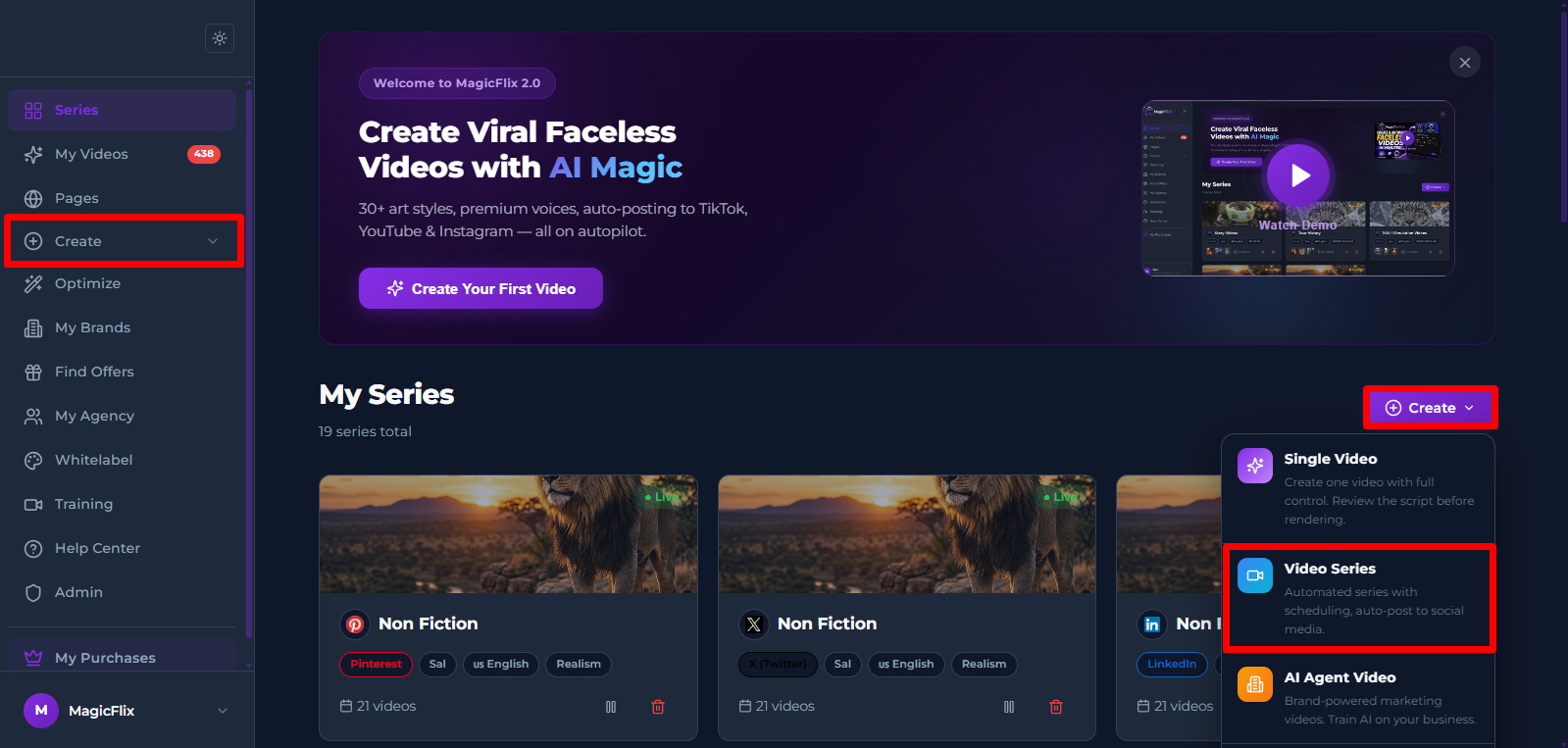
- Log in to your MagicFlix, then click on Create either the button to the right, or the create tab to the left, and select “Single Video”
- Video Creation:
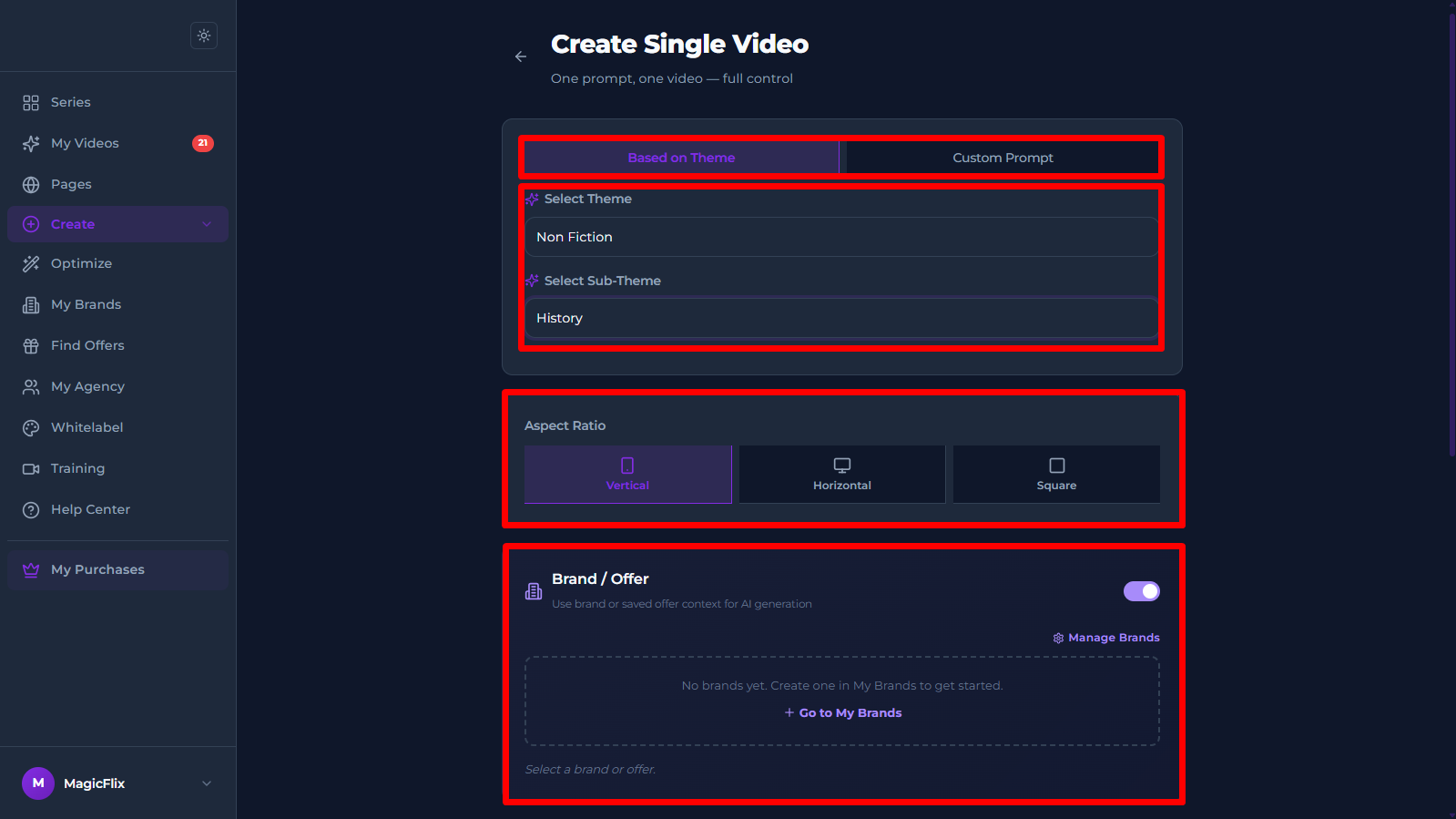
- You can choose to use our built-in themes or provide your own prompt.
- If you picked our themes, select a Specific theme and a Sub-theme.
- Pick your desired aspect-ratio
- You can also toggle your brand if you created one, this offers more context to the AI to create more accurate video. You can read this article on how to create a brand:
https://help.magicflixapp.com/knowledge-base/69-magicflix-2-how-do-i-create-a-brand
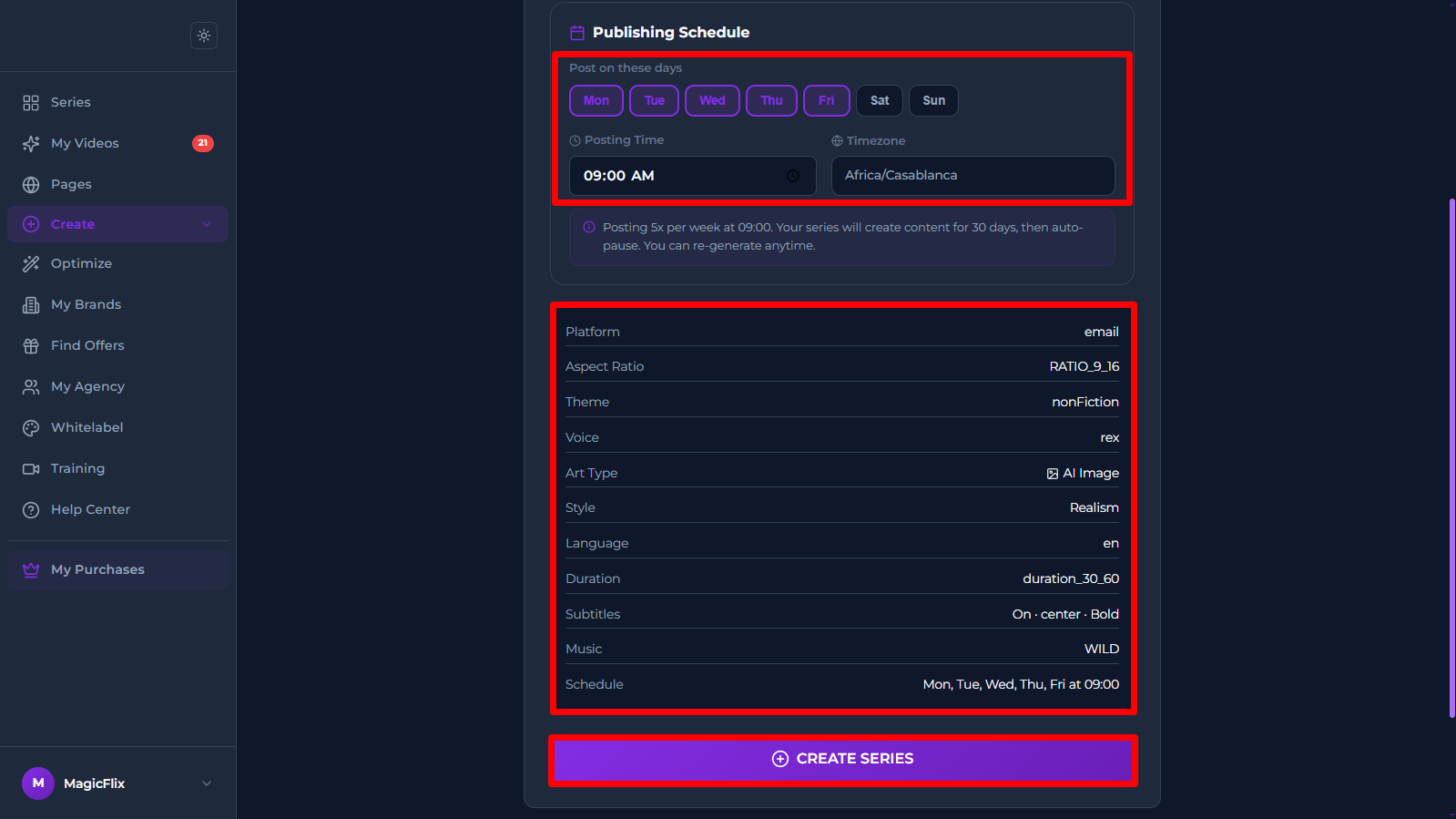
- Settings: Here you can pick everything directly related to your video
- Voice: Pick the TTS model you want and the Voice to narrate your videos, you can click on the voice to preview it.
- Language: Pick the language of your videos
- Duration: Pick the duration, whether you want a long video or a short one
- Art type: Choose whether you want the ai to generate Images or Videos
- Art style: Pick your favorite art style (Realism, Illustrative, Oil painting, …)
- Subtitles: Enable or Disable subtitles and customize them to your liking
- Music: Pick on of the existing music packs or upload your own music
- Schedule: You can render the video right now, or schedule it for a later specific date of your choosing.
- Visual Consistency: This allows you to:
- Upload Visual assets to help the AI make videos with visuals consistent with your preferences
- Describe your character or style, this allows you to tell the AI exactly how your character or the style of the video will look like.
- Once you are done click on “Create Video”
- Review your Script:
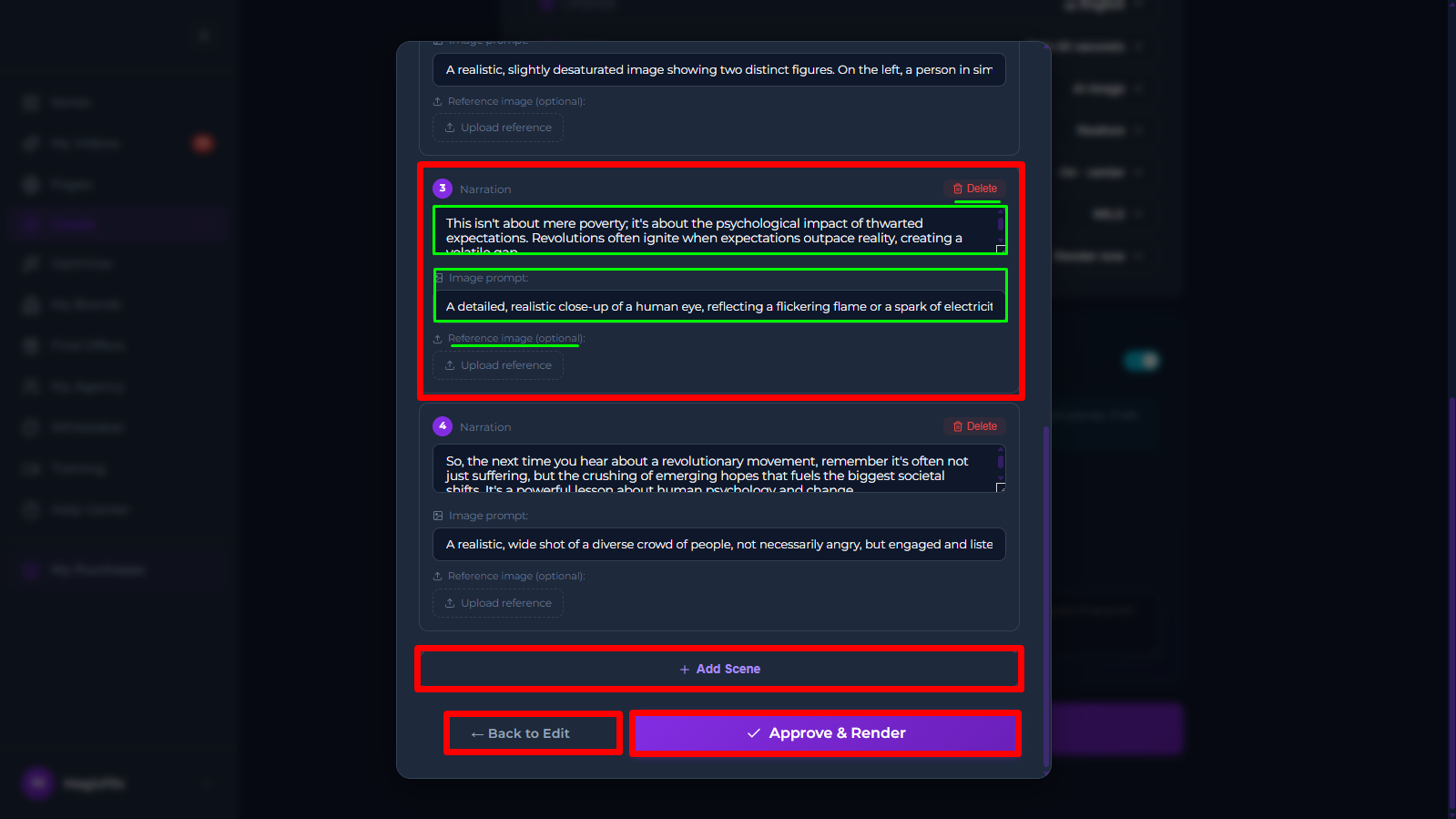
- Scenes:
- First you can delete any scene that you done want
- You can review and edit your script for the Text-to-Speech
- You can review and edit your Image generation prompt
- Upload any
- You can add new scenes
- If you need to make further changes, you can click on “Back to Edit” to go back and change anything.
- Once you are done click “Approve & Render”
- Scenes:
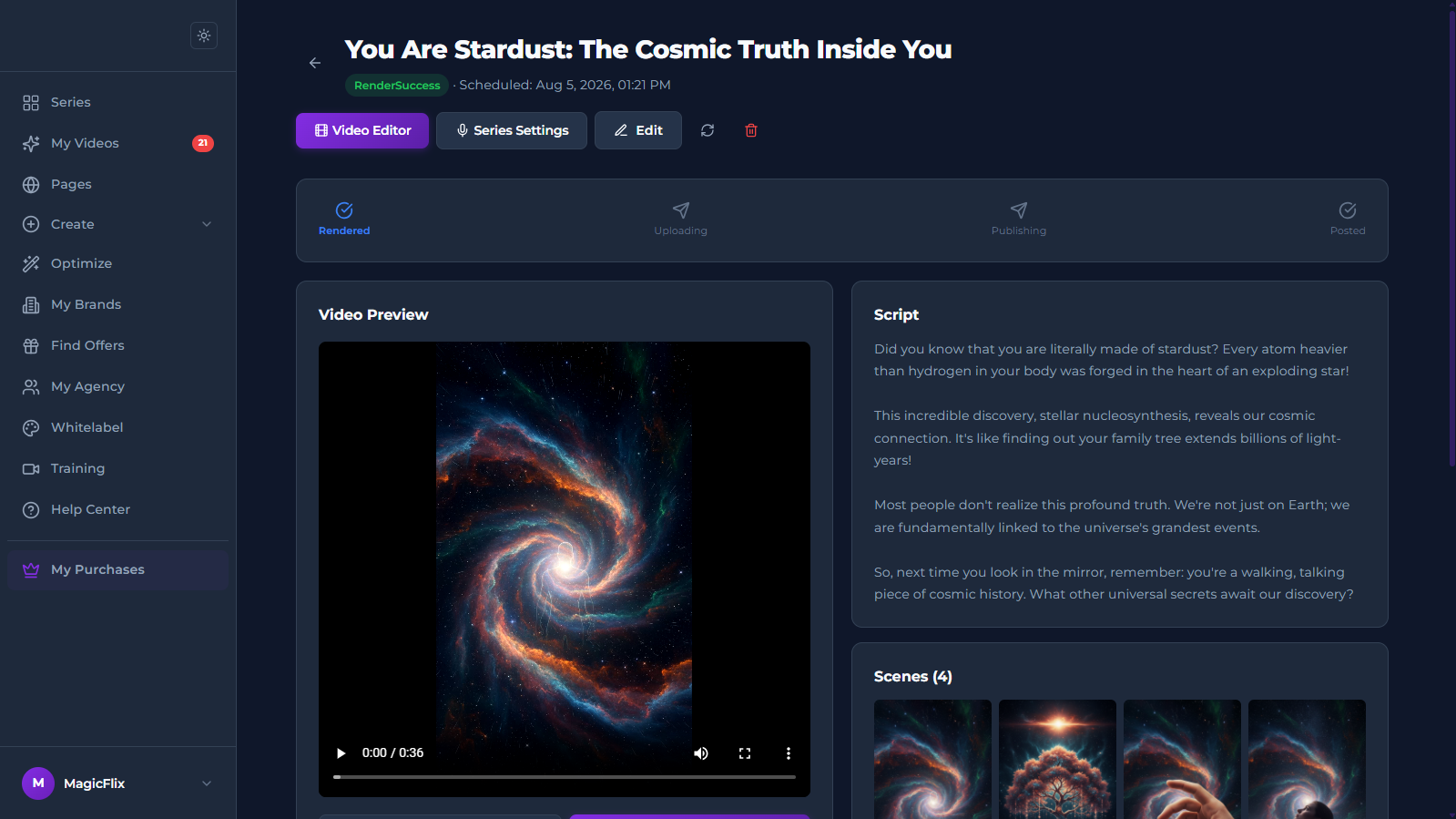
- Your video will now render, and you will be able to post or download it
Still No Luck ? We can help you
Create a ticket, we’ll get back to you as soon as possible.
Submit a Ticket