MagicFlix 2: How do I use the Optimize feature?
1 month ago
The Optimize feature is MagicFlix's all-in-one content toolkit. It covers everything from finding hashtags and trending topics to generating titles, descriptions, and thumbnails, all in one place.
- From your MagicFlix dashboard, click "Optimize" in the left sidebar. You'll see a row of tabs at the top, one for each tool below.
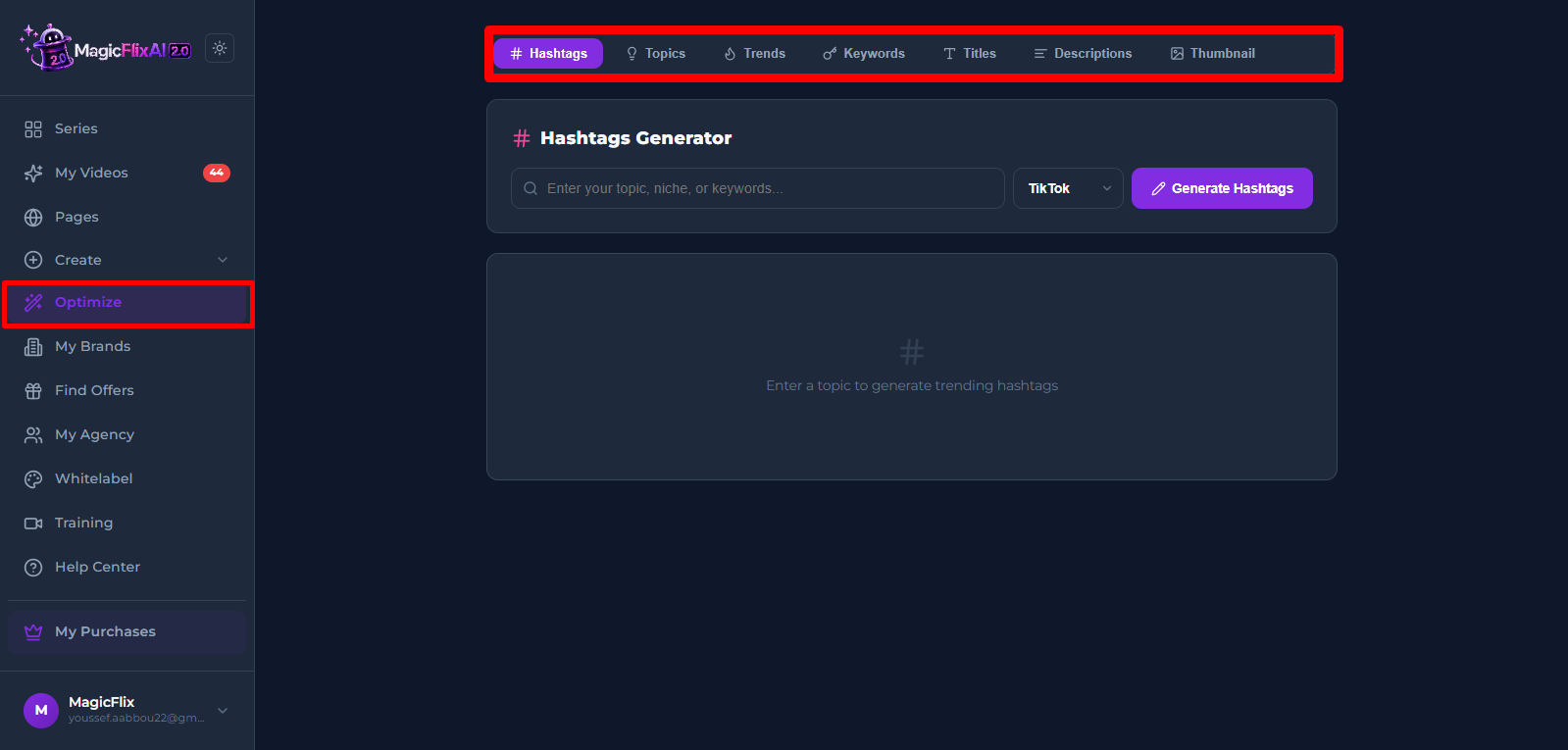
- Hashtags: find hashtags to help your content reach the right audience.
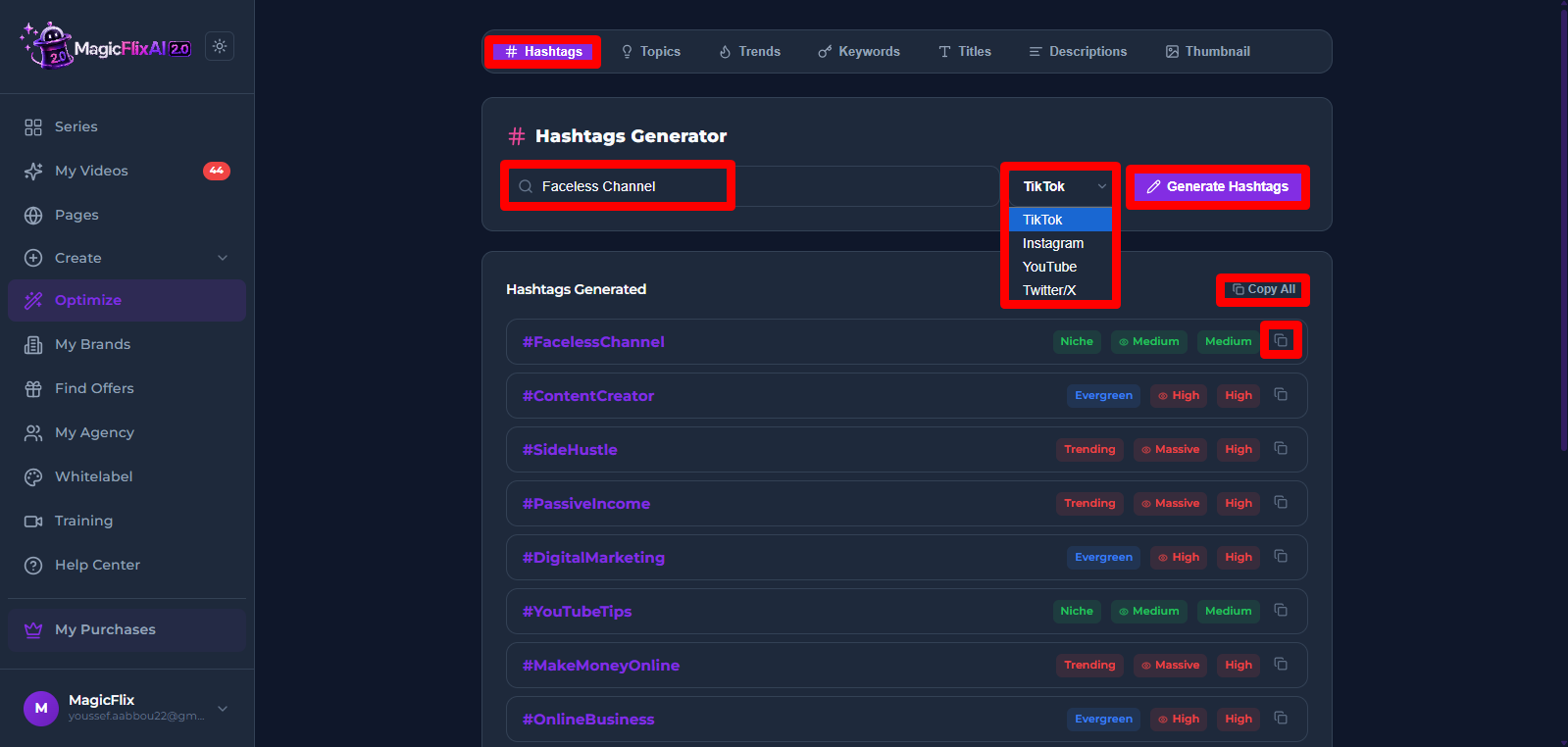
- Enter your topic or keyword.
- Select your platform: TikTok, Instagram, YouTube, or X.
- Click "Generate Hashtags".
- Copy hashtags one at a time, or copy them all at once.
- Topics: find content topic ideas when you're not sure what to create next.
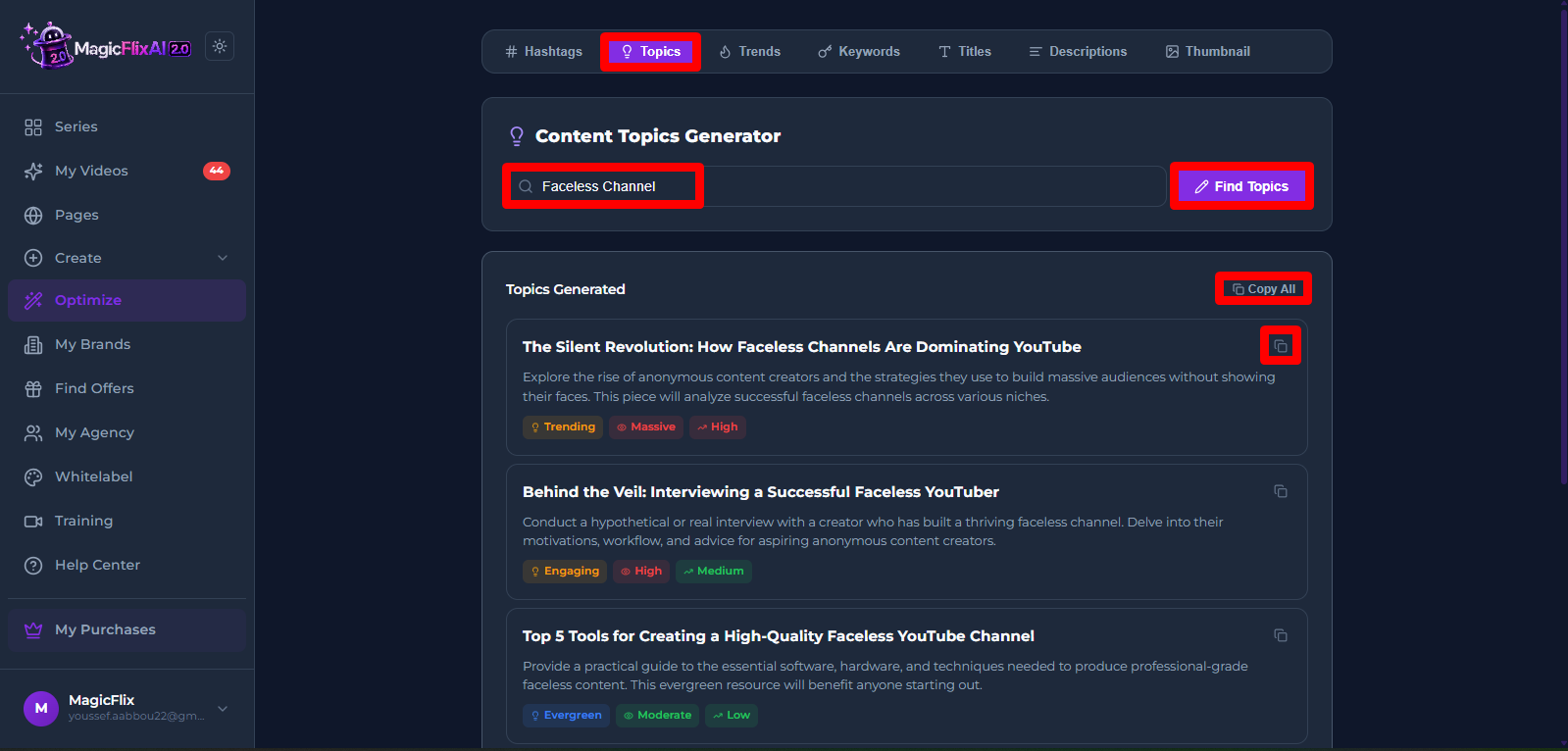
- Enter your keywords.
- Click "Find Topics".
- Browse the list of suggested topics and copy the one that fits.
- Trends: see what's trending right now in your niche.
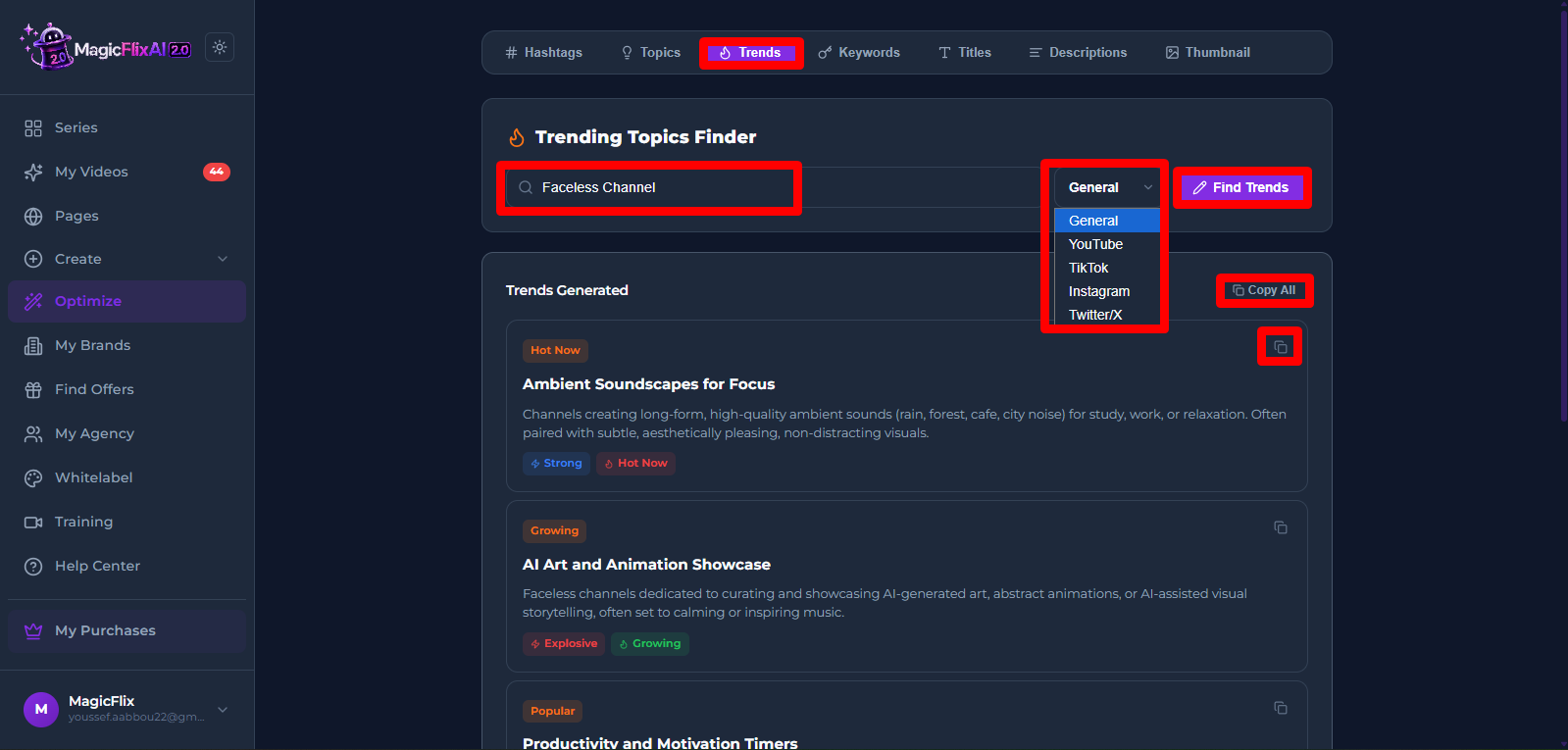
- Enter your keywords.
- Choose general trends, or narrow it down to a specific platform like YouTube or TikTok.
- Copy the trending angle that fits your content.
- Keywords: find top-ranking keywords so your content is easier to discover.
- Enter your topic.
- Click "Find Keywords".
- Review the results and pick the keywords that best match your content.
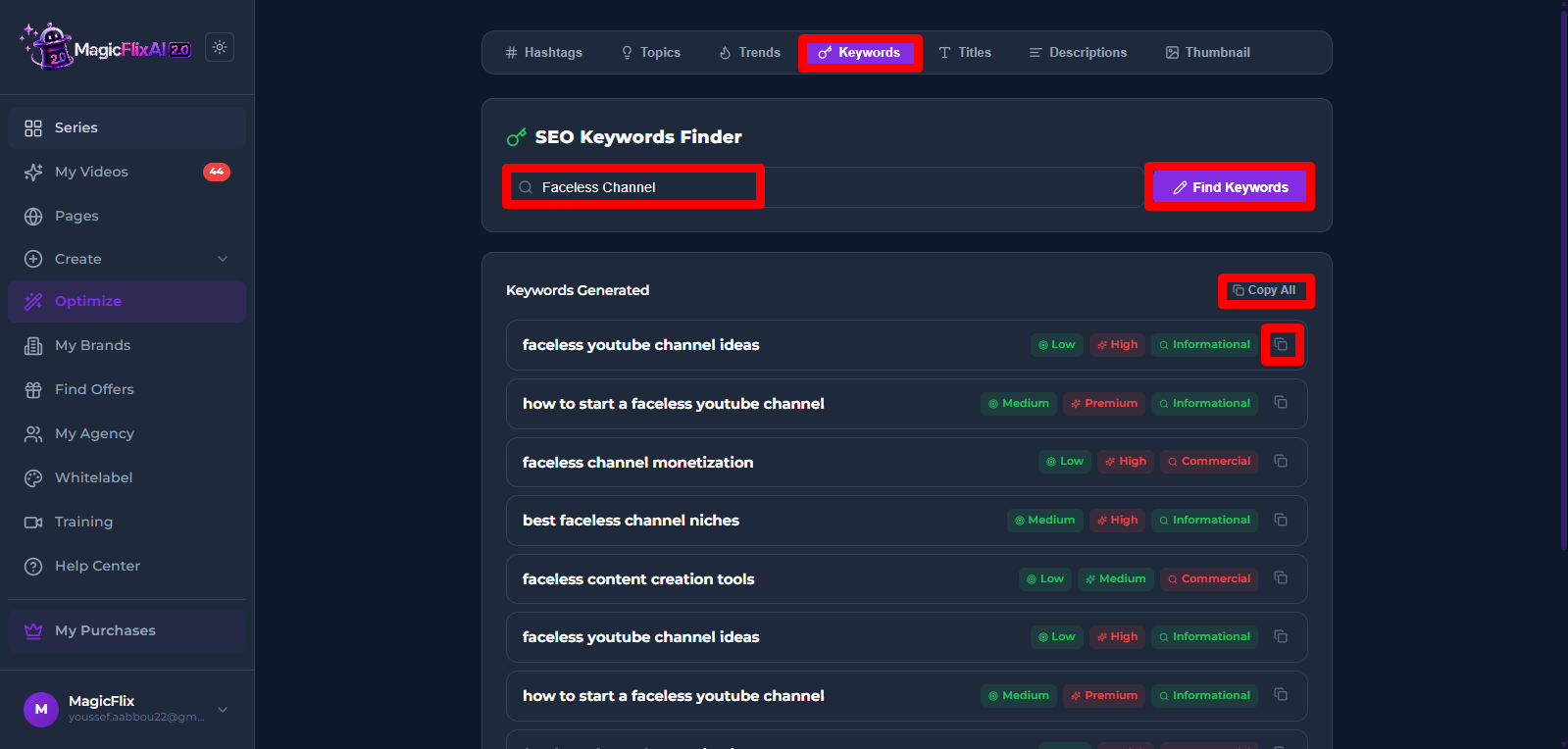
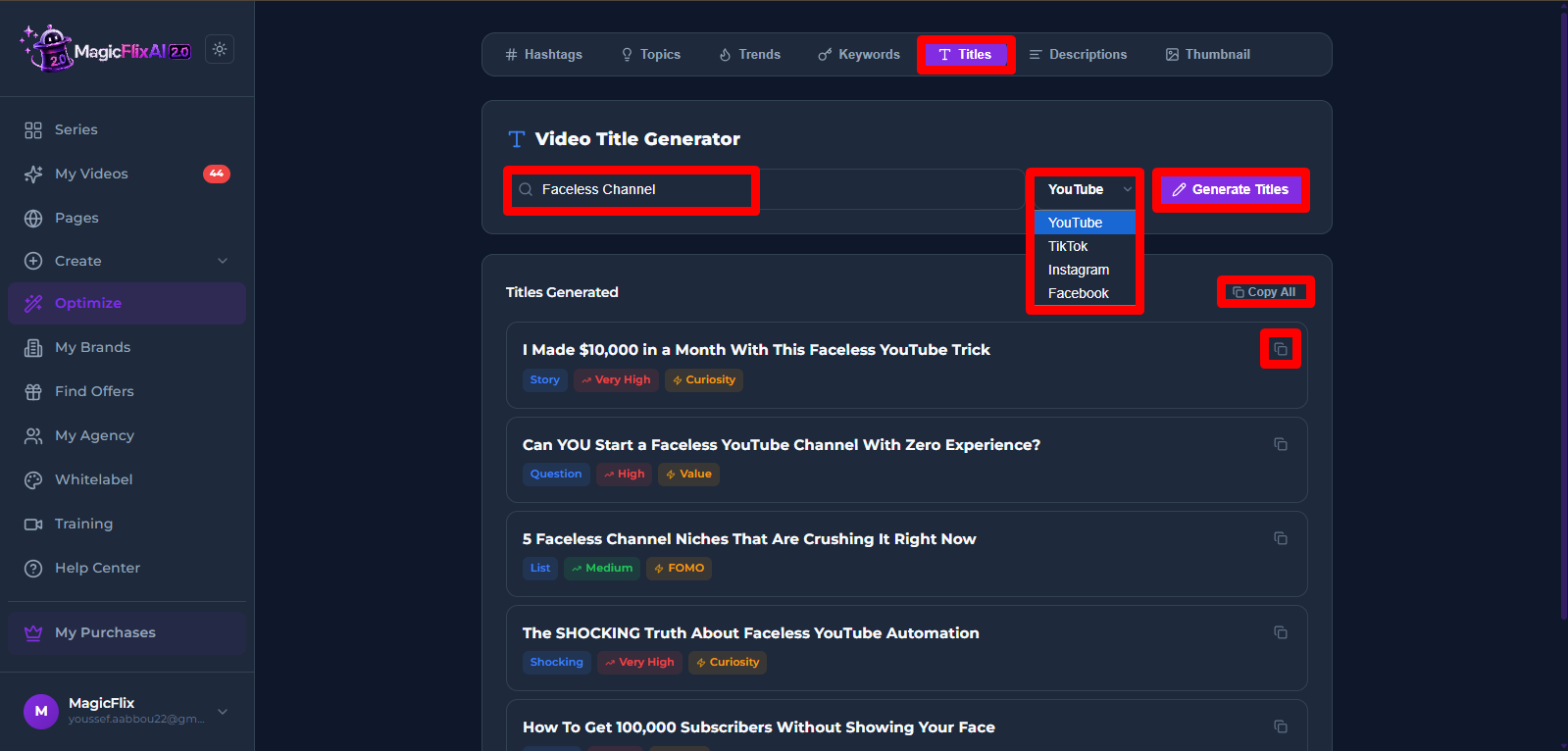
- Titles: generate attention-grabbing titles for your content.
- Enter your content idea.
- Select your platform.
- Click "Generate Title".
- Choose from the set of titles MagicFlix generates.
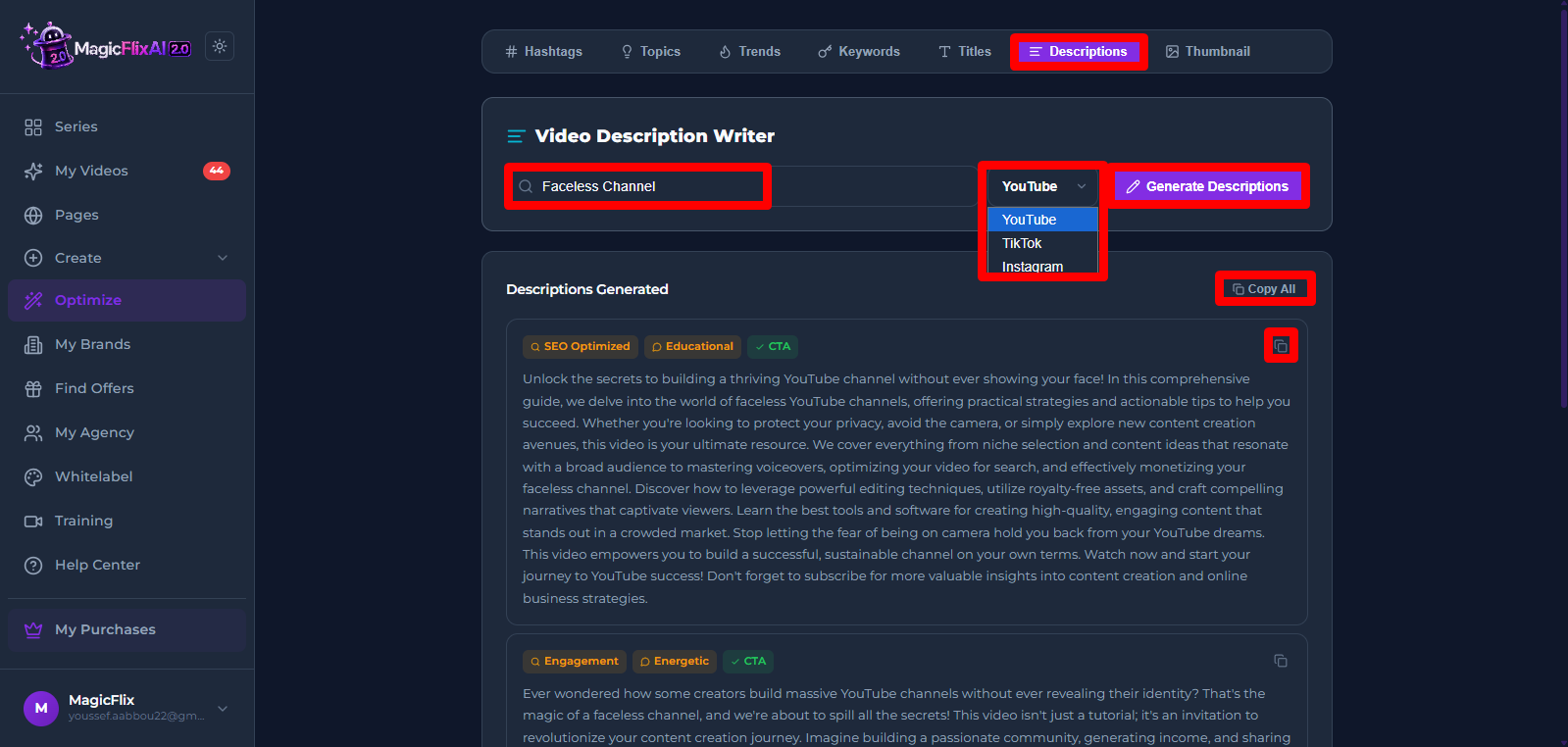
- Descriptions: generate a description that helps the algorithm and your audience understand your content.
- Paste your content idea, or the title you just generated.
- Select your platform.
- Click "Generate Description".
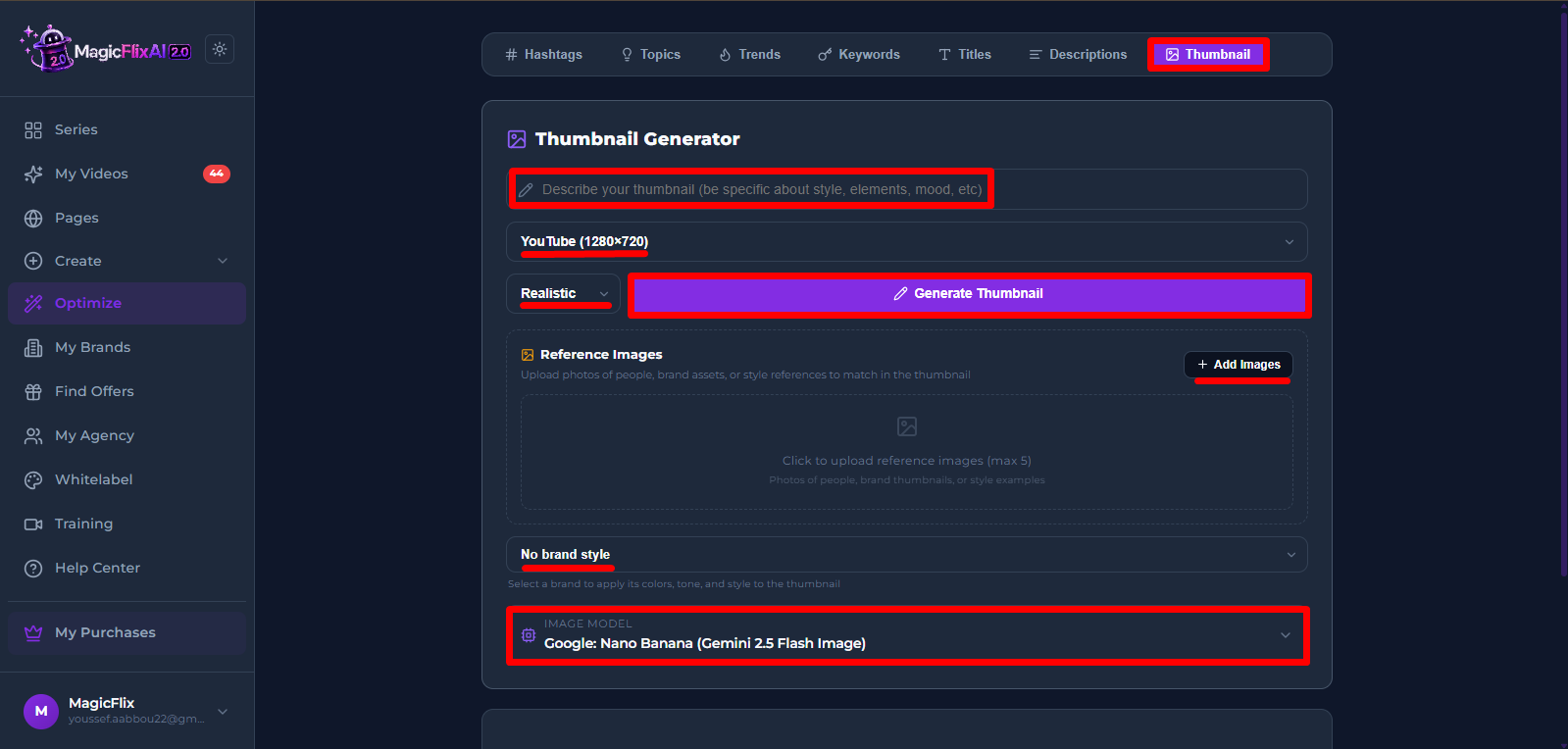
- Thumbnail: create a thumbnail for your content.
- Describe how you want the thumbnail to look: the style, mood, and elements you want included.
- Select your platform. MagicFlix automatically applies the correct dimensions.
- Choose your visual style.
- If you have reference images such as brand assets or style examples, you can upload up to 5 of them.
- You can also apply a brand style from a brand you've already created. If you haven't created one yet, you can read our article on how to create a brand:
https://help.magicflixapp.com/knowledge-base/69-magicflix-2-how-do-i-create-a-brand - Select the AI model you want to use for generation.
- Click "Generate Thumbnail".
Together, these seven tools take your content from idea to publish-ready, all in one place inside MagicFlix.
Still No Luck ? We can help you
Create a ticket, we’ll get back to you as soon as possible.
Submit a Ticket